> For the complete documentation index, see [llms.txt](https://help.impact.com/llms.txt). Markdown versions of documentation pages are available by appending `.md` to page URLs; this page is available as [Markdown](https://help.impact.com/brand/what-would-you-like-to-learn-about/advocate-program/advocate-rewards/referral-promo-codes-for-participants/set-up-referral-promo-codes.md).
# Set Up Referral Promo Codes
Upload a batch of referral promo codes in your program rules, then make them available to your advocates through your widget or microsite.
1. In the left navigation menu, select  **\[Engage] → Program Rules**.
2. Scroll to the *Promo Codes* section, then select **Set Up Promo Codes**. For referral promo codes this could be set to either **Multi-use** or **One-time use**.
* It is recommended to use one-time use codes over multi-use codes as it can help minimize fraud.
3. Select the number of codes you’d like to make available per advocate. This option is only available if you've selected to create **One-time use** promo codes.
* This is the number of unused codes an advocate holds at one time, not a lifetime limit. Learn how [used codes are replaced](https://help.impact.com/brand/what-would-you-like-to-learn-about/advocate-program/advocate-rewards/referral-promo-codes-for-participants/replace-used-promo-codes.md).
4. You can set when you’d like to be notified about running low on promo codes.
* Once the number of codes reaches the number you set in the notification section, an email will be sent to you to remind you that you are running low on codes. It is very important to ensure your program does not reach zero, because used codes can only be replaced while you have unused codes available. Be sure to upload more codes once you run low to keep your program running smoothly.
5. Select **Upload codes** to upload a batch of referral promo codes.
* You will be redirected to a page where you can upload your batch of codes in any of the accepted file formats.
6. Select **Save** once you have configured your promo codes. A pop-up will appear asking if you are sure you’d like to save. Once you enable one-time codes, the action cannot be undone.
7. Select  **\[check box]** to automatically apply a new promo code template to your widget.
* Alternatively, if you have an existing widget or microsite, you can manually add the referral promo code component. You can do so by navigating to **Content** in the left navigation bar and then choosing to edit your widget or microsite. Select **Add** on the right to add a component to your existing widget or microsite. Learn more about [widget and microsite components](https://help.impact.com/brand/what-would-you-like-to-learn-about/advocate-program/manage-advocate-participant-experiences/widget-and-microsite-components-explained.md).
Once you have uploaded your referral promo codes, the codes will be auto-generated and supplied through the [widgets](https://help.impact.com/brand/what-would-you-like-to-learn-about/advocate-program/manage-advocate-participant-experiences/introduction-to-participant-experiences.md#widgets-0-0) or microsites you have set up.
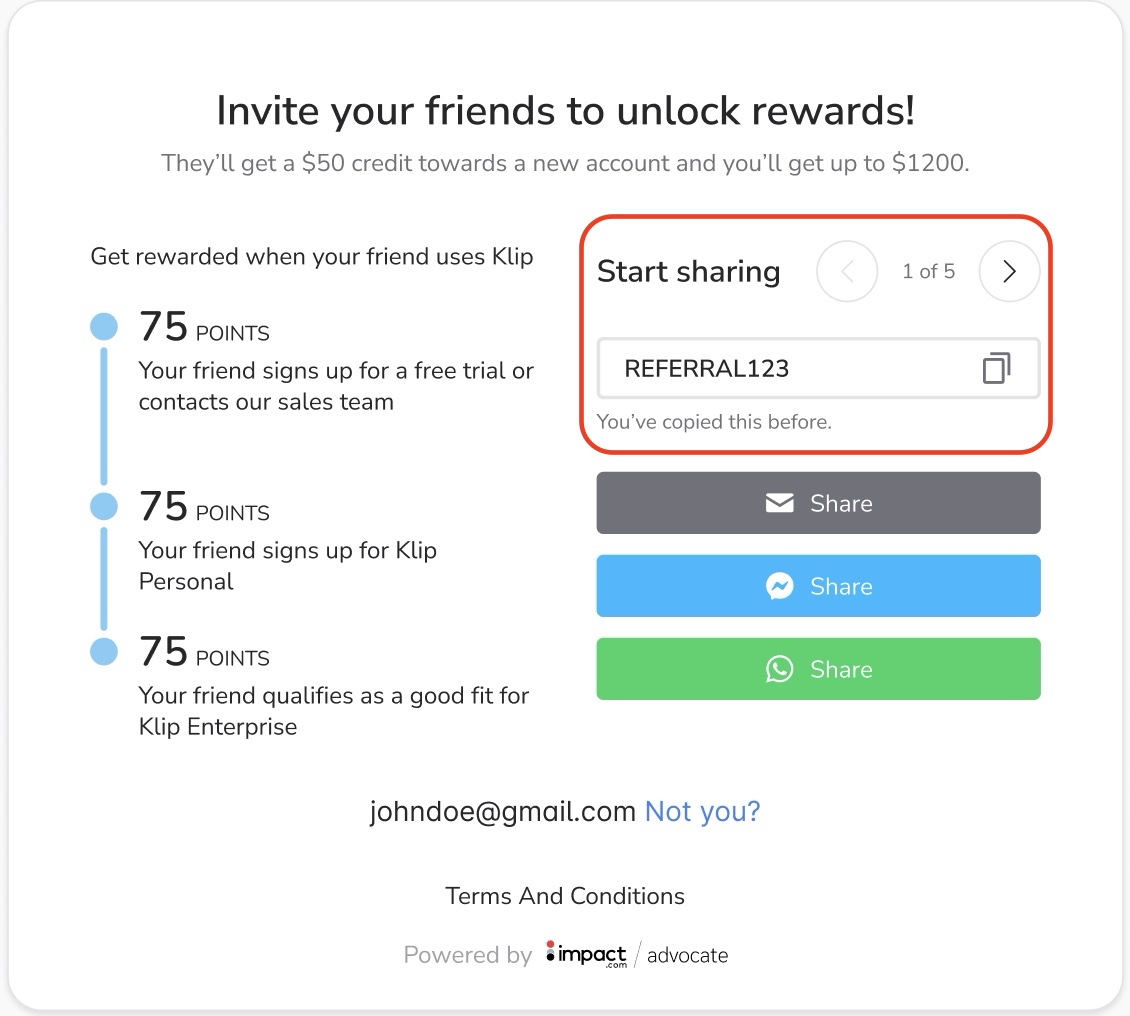
In the image below, the advocate is provided with 5 different codes that they can cycle between and copy to share with referrals. If a code has been copied before, you’ll be notified below the code field. This helps avoid situations where you might send the same code to multiple people.
---
# Agent Instructions
This documentation is published with GitBook. GitBook is the documentation platform designed so that both humans and AI agents can read, navigate, and reason over technical content effectively. Learn more at gitbook.com.
## Querying This Documentation
If you need additional information that is not directly available in this page, you can query the documentation by asking a question.
Perform an HTTP GET request on the following URL with the `ask` and `goal` query parameters:
```
GET https://help.impact.com/brand/what-would-you-like-to-learn-about/advocate-program/advocate-rewards/referral-promo-codes-for-participants/set-up-referral-promo-codes.md?ask=&goal=
```
`ask` is the immediate question: it should be specific, self-contained, and written in natural language.
`goal` is what the user is ultimately trying to achieve, the reason they need the answer. Sharing it helps GitBook give you a better, more relevant answer. A goal is most helpful when it describes the outcome the user wants rather than restating the question. For example, with `ask=how do I create an API token`, a goal like `automate deployments from our CI pipeline` lets GitBook tailor the answer to that use case.
The response will contain a direct answer to the question and relevant excerpts and sources from the documentation.
Use this mechanism when the answer is not explicitly present in the current page, you need clarification or additional context, or you want to retrieve related documentation sections.