Essentials EditionPro EditionEnterprise Edition
Set Up Auto-Funding for Advocate Cash Rewards
Last updated
Was this helpful?
Ensure your advocates are paid seamlessly and on time by automating your account funding. Advocate Auto-Funding eliminates the need to manually top up your account balance, preventing payment delays caused by insufficient funds.
Currency Requirement: This feature currently supports USD-based brands only.
Finance Settings: You must have a funding source connected to your impact.com account (e.g., ACH/Wire).
When running an Advocate program, cash rewards can deplete your account balance quickly. Auto-funding uses a daily balance check and a 10-day forecast window to predict upcoming payouts and automatically transfers the necessary funds into your account.
Because ACH transfers to fund your account can typically take 5-7 business days, a 10-day payment buffer ensures that the funds have enough time to clear into your account before the system attempts to pay your advocates. This buffer prevents "insufficient funds" errors and ensures a smooth experience.
To enable auto-funding for your Advocate program, you'll need to complete a successful ACH deposit first. To learn more about how to set up automatic payments, see Set Up Automatic Payments as a Brand.
The system recommends selecting a daily balance check and a 10-day forecast window.
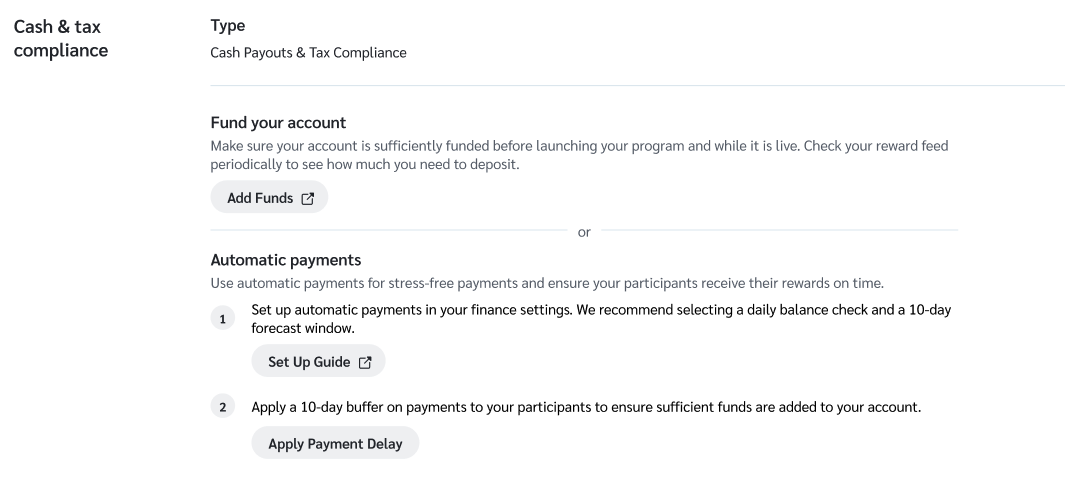
Select Get Started under the Fund your account tab in the Advocate checklist setup. This will redirect you to the general settings page where you have the option to set up your automatic payments.

In step 1 under the Automatic payments section, select the Set Up Guide button for more information on how to generally set up the auto-funding feature.
In step 2, select the Apply Payment Delay button to set up the recommended 10-day payment buffer window.
Important: Step 2 is a mandatory step for the Advocate program. If you don’t apply the buffer, you risk your account balance dropping to zero before new funds arrive. Insufficient funds cause payment failures and delays for your advocates while you manually add funds.

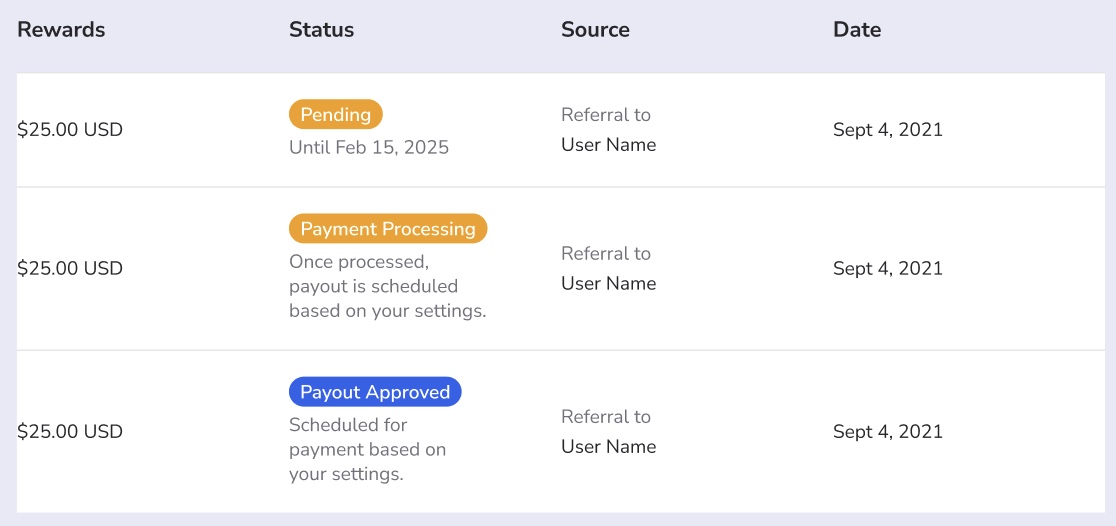
When this feature is enabled, your advocates will see updated statuses in their rewards dashboard to manage their expectations regarding the payment date.
Pending
The reward has been earned but is within the waiting period (e.g., Pending until [Date]).
Payment Processing
The reward has been approved, and the 10-day buffer is active (e.g., Scheduled to clear for payment on [Date]).
Payout Approved
The funds have been secured, and the payment is ready to be disbursed based on the user's payout settings.

Last updated
Was this helpful?
Was this helpful?