Create Bulk Cash Rewards with Advocate

While many rewards are triggered automatically by program rules (like a referral conversion), you may sometimes need to reward participants for manual or offline actions—such as completing a survey or winning a contest.

The Bulk Rewards import tool allows you to issue cash, points, or gift cards to multiple advocates at once by uploading a CSV file. This feature includes a dry run safety mechanism to ensure your data is correct before any funds are disbursed.

Prepare Your Import File

circle-check

To begin, you will need a CSV or JSONL file containing the list of users you wish to reward.

  • Required Columns: Your file must minimally include userId to identify the user.

  • Optional Columns: You can include reward details (e.g., amount, unit, type) in the file. Alternatively, we recommend setting these as global defaults in the platform during the import process to simplify your file.

File Columns Reference

userId

The unique ID of the user.

Required

assignedCreditInCurrencyBaseUnit

The amount to be rewarded (e.g., 50).

Conditional (Not required if a global default is set)

rewardUnit

The unit of the reward (e.g., USD, POINTS).

Conditional (Not required if a global default is set)

globalRewardKey

The key of a pre-configured reward to give.

Conditional (Not required if a global default is set)

discountPercent

The amount to be rewarded as a discount

Conditional (Not required if a global default is set)

dateScheduledFor

Pend the reward until this date.

Optional

uniqueId

A unique identifier for the transaction.

Recommended Used as a safety key to prevent duplicate rewards if the file is re-run.

customerNote

Add a note that will be visible to the customer.

Optional

internalNote

Add a note for internal use that the customer won’t be able to see.

Optional

1

Configure Import Settings

  1. In the left navigation menu, select [Engage] → Reporting → Imports & Exports.

  2. In the top-right corner, select Import.

  3. Under Import type, select Rewards.

Set Pre-set Values (Global Defaults)

To save time and reduce errors in your CSV file, you can define Pre-set values that apply to every row in your import.

  • Reward: Choose a pre-configured reward or specify a manual unit (e.g., "Cash/USD").

  • Program: Associate these rewards with a specific program for reporting purposes.

  • Reward Pending Duration: [Toggle on] to add a safety buffer (e.g., 30 days) before the reward is available to the user. This allows time for retractions if necessary.

circle-check
2

Upload and Dry Run

Because cash rewards are final and cannot be reversed, the system requires a dry run (test import) so you can confidently review the details before processing the rewards.

  1. Under the Upload your import users CSV or JSONL file select Choose File.

  2. Select Run Test Import to initiate the test state.

  3. The system will process the file without creating rewards.

3

Review and Finalize

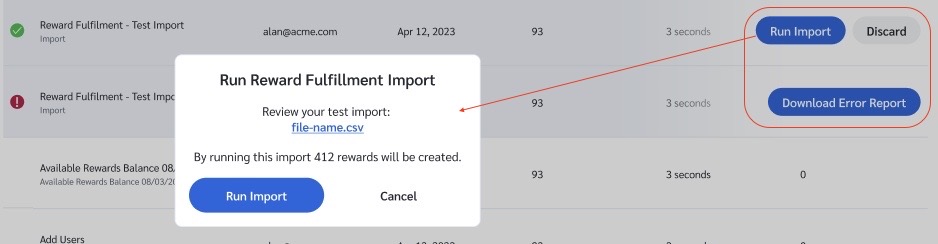
Once the test run is complete, you will see a status entry in the Imports & Exports list. Emails may be sent as part of the review process (gift cards, payout configuration, etc.).

  1. Review: If there are errors (indicated with [Exclaimation]), select Download Error Report to fix your file and try again. Also, select Download Report to get a record of all the rewards that will be created. Whether there is an error or not, it's recommended for reviewing.

  2. Confirm: If the test is successful (indicated with a [Checkmark]), select Run Import.

  3. A confirmation modal will appear summarizing the total impact (e.g., “By running this import 412 rewards will be created"). Select Run Import to confirm and disburse the rewards.

If you decide not to proceed, you can simply cancel the run and then select Discard to delete the test run.

Last updated

Was this helpful?