# Step 1: Finance & Funding
Start by setting up your finance and funding options. It’s important to understand [how finance and billing works](https://help.impact.com/en/support/solutions/articles/48001233420-finance-explained-for-brands) within impact.com.
#### Update financial schedule settings
Update your finance settings to match Seller’s financial schedule and avoid any issues further down the road. Below is an overview of the different components in your financial schedule and how they link together:
* Make sure your primary finance contact and any other contacts are up to date in your [funding document settings](https://help.impact.com/en/support/solutions/articles/48001238859).
* You’ll also want to ensure all relevant information in your [impact.com fees document settings](https://help.impact.com/en/support/solutions/articles/155000004113) and [partner fees document settings](https://help.impact.com/en/support/solutions/articles/155000004112) are correctly captured. These settings tie into your invoice processing.
#### Set your funding strategy
Next, [set up your Amazon Seller funding strategy](https://help.impact.com/en/support/solutions/articles/155000004727-set-up-your-amazon-seller-funding-strategy), making sure that custom GAAP invoicing and action locking periods are configured accordingly.
Another factor to keep in mind is processing times when depositing funds into your account to ensure your financial obligations are settled on time.
#### Review your finance dashboard
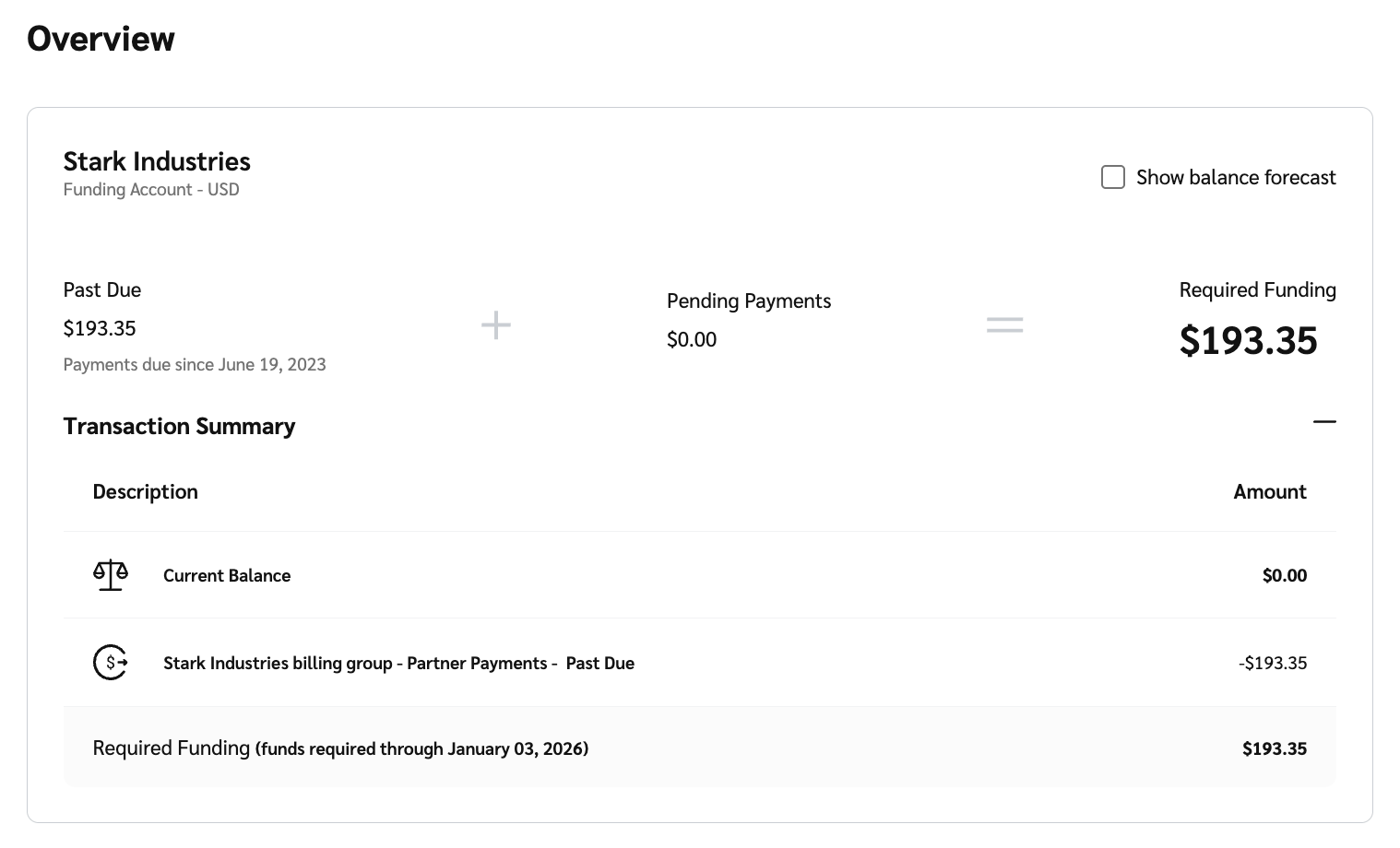
Next, let’s go over your finance dashboard—this is your control panel for all things finance-related. It’s where you can change your settings later on, review invoices, see your subscription, view usage details, and fund your account. Start here to ensure the details within your funding account are correct and complete.
1. From the top navigation bar, select **your balance**.
2. Select [**Overview**](https://app.impact.com/secure/advertiser/finance/fr/finance-overview.ihtml?u=%2Fsecure%2Ffinance%2Fapp%2Fbrand-overview-view.ihtml) to see a summary of your [funding account](https://help.impact.com/en/support/solutions/articles/155000000613-your-funding-account-overview-explained).
---
# Agent Instructions: Querying This Documentation
If you need additional information that is not directly available in this page, you can query the documentation dynamically by asking a question.
Perform an HTTP GET request on the current page URL with the `ask` query parameter:
```
GET https://help.impact.com/brand/readme/seller-program/amazon-seller-program/introduction-welcome-to-impact.com/step-1-finance-and-funding.md?ask=
```
The question should be specific, self-contained, and written in natural language.
The response will contain a direct answer to the question and relevant excerpts and sources from the documentation.
Use this mechanism when the answer is not explicitly present in the current page, you need clarification or additional context, or you want to retrieve related documentation sections.