> For the complete documentation index, see [llms.txt](https://help.impact.com/llms.txt). Markdown versions of documentation pages are available by appending `.md` to page URLs; this page is available as [Markdown](https://help.impact.com/brand/pt-br/what-would-you-like-to-learn-about/platform-features/reach-out-to-partners/emails/connect-your-personal-email-to-your-impactcom-account.md).
# Conecte seu e-mail pessoal à sua conta do impact.com
{% hint style="warning" %}
**Importante:** Este recurso está disponível apenas nas edições Professional e Enterprise.
{% endhint %}
Conecte seu e-mail pessoal à sua conta impact.com para [enviar e-mails para parceiros em potencial](/brand/pt-br/what-would-you-like-to-learn-about/performance-program/recruiting-partners/prospective-partners/contact-a-prospect.md) diretamente do seu endereço de e-mail. Isso adiciona um toque mais pessoal aos seus esforços de recrutamento e abordagem.
1. Na barra de navegação superior, selecione seu  **\[User Profile]** → **Editar perfil**.
2. Na *Enviar como endereço de e-mail* , selecione **Conecte seu e-mail**.
3. Selecione seu provedor de e-mail e insira seu endereço de e-mail.
4. Selecione **Próximo**.
5. Autentique a conta concluindo qualquer etapa de autenticação multifator.
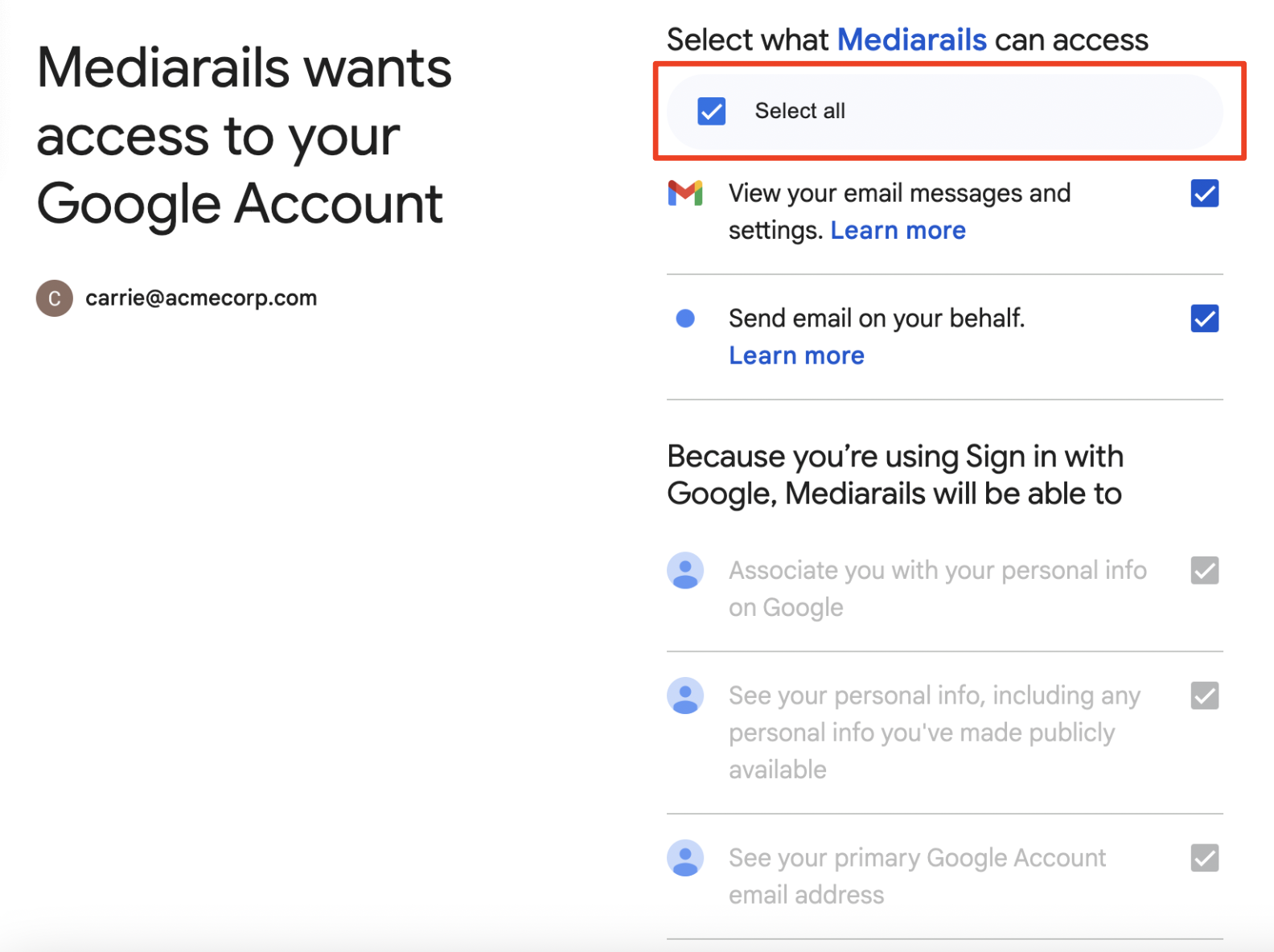
6. A impact.com solicitará que você **Entrar no Mediarails**. O Mediarails é uma empresa da impact.com e foi adquirida pela impact.com em setembro de 2018. Selecione **Continuar**.
7. Selecione **Selecionar tudo** para conceder à impact.com as permissões necessárias para enviar e-mails em seu nome.
8. Selecione **Continuar**.
* Seu e-mail agora estará conectado à sua conta impact.com. Isso é indicado pela  **E-mail conectado** confirmação abaixo do seu endereço de e-mail.
9. Selecione **Salvar** para finalizar as alterações feitas no seu perfil.
#### Provedores de e-mail compatíveis
A impact.com oferece suporte à integração com os seguintes provedores de e-mail:
* Gmail
* Microsoft Office 365
---
# Agent Instructions
This documentation is published with GitBook. GitBook is the documentation platform designed so that both humans and AI agents can read, navigate, and reason over technical content effectively. Learn more at gitbook.com.
## Querying This Documentation
If you need additional information that is not directly available in this page, you can query the documentation by asking a question.
Perform an HTTP GET request on the following URL with the `ask` and `goal` query parameters:
```
GET https://help.impact.com/brand/pt-br/what-would-you-like-to-learn-about/platform-features/reach-out-to-partners/emails/connect-your-personal-email-to-your-impactcom-account.md?ask=&goal=
```
`ask` is the immediate question: it should be specific, self-contained, and written in natural language.
`goal` is what the user is ultimately trying to achieve, the reason they need the answer. Sharing it helps GitBook give you a better, more relevant answer. A goal is most helpful when it describes the outcome the user wants rather than restating the question. For example, with `ask=how do I create an API token`, a goal like `automate deployments from our CI pipeline` lets GitBook tailor the answer to that use case.
The response will contain a direct answer to the question and relevant excerpts and sources from the documentation.
Use this mechanism when the answer is not explicitly present in the current page, you need clarification or additional context, or you want to retrieve related documentation sections.