> For the complete documentation index, see [llms.txt](https://help.impact.com/llms.txt). Markdown versions of documentation pages are available by appending `.md` to page URLs; this page is available as [Markdown](https://help.impact.com/brand/pt-br/what-would-you-like-to-learn-about/account-administration/account-settings/subscription-add-ons/get-the-optimize-add-on.md).
# Obtenha o complemento Optimize
Não sabe como realmente são as jornadas dos seus clientes? Não tem certeza se está atribuindo crédito aos parceiros certos? Precisa de insights mais profundos sobre seu funil de vendas, canais de marketing e benchmarks do segmento da sua marca? Adquira o complemento Optimize!
#### Verifique as configurações financeiras
1. Na barra de navegação superior, selecione **seu saldo** **→** [**Assinatura**](https://app.impact.com/secure/advertiser/finance/fr/finance-overview.ihtml).
2. Verifique se você tem o [*Assinatura* widget](/brand/pt-br/what-would-you-like-to-learn-about/platform-features/finance/your-subscription/view-your-impactcom-subscription-and-usage-details.md) na *Visão geral* tela.
* Se o *Assinatura* widget não estiver exibido, [entre em contato com o suporte](https://app.impact.com/secure/advertiser/support/customer-support-portal-flow.ihtml) para ter o recurso habilitado na sua conta.
* Se o *Assinatura* widget estiver exibido, você pode prosseguir com as instruções abaixo.
#### Assine o Optimize
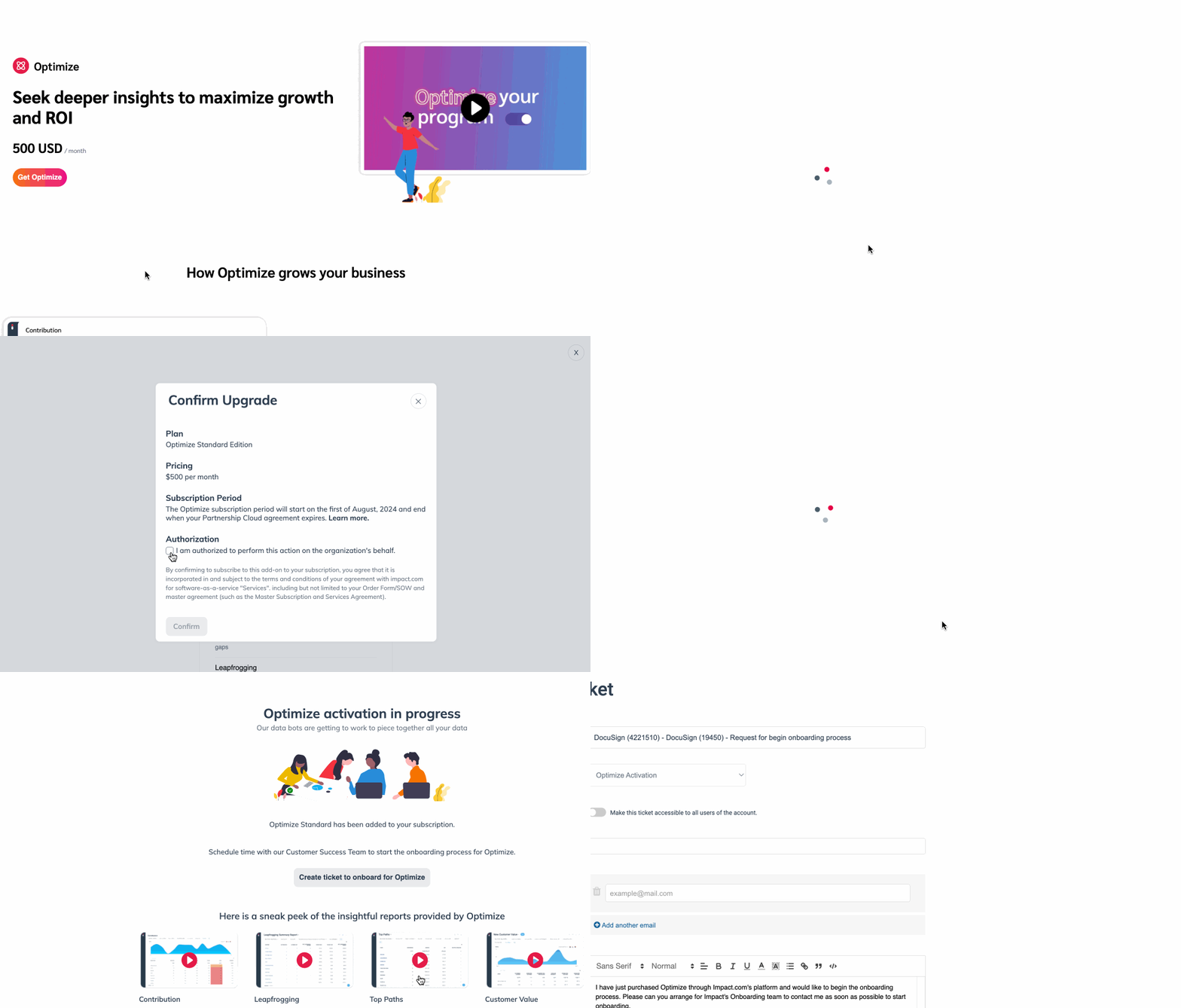
1. Na barra de navegação à esquerda, selecione  **Otimizar** → **Adquira o Optimize**.
2. Selecione seu plano preferido, por exemplo, *Padrão*, depois selecione **Escolher plano**.
* Na janela pop-up que aparecer, leia o *Preços*, *Período da assinatura*, e *Autorização* contrato do plano escolhido.
3. Em *Autorização*, selecione  **\[Caixa marcada] Estou autorizado a realizar esta ação em nome da organização.**
4. Selecione **Confirmar**.
5. Depois de confirmar sua assinatura, selecione **Criar chamado para integração ao Optimize**.
* A equipe de Onboarding da impact.com entrará em contato com você e ajudará durante o processo de configurar seus canais com o Optimize.
6. Opcionalmente, assista aos vídeos fornecidos perto da parte inferior da tela ou veja nosso [Guia de início rápido do Optimize](/brand/pt-br/what-would-you-like-to-learn-about/platform-features/cross-channel-performance-insights/optimize-startup-guide.md) para mais informações.
---
# Agent Instructions
This documentation is published with GitBook. GitBook is the documentation platform designed so that both humans and AI agents can read, navigate, and reason over technical content effectively. Learn more at gitbook.com.
## Querying This Documentation
If you need additional information that is not directly available in this page, you can query the documentation by asking a question.
Perform an HTTP GET request on the following URL with the `ask` and `goal` query parameters:
```
GET https://help.impact.com/brand/pt-br/what-would-you-like-to-learn-about/account-administration/account-settings/subscription-add-ons/get-the-optimize-add-on.md?ask=&goal=
```
`ask` is the immediate question: it should be specific, self-contained, and written in natural language.
`goal` is what the user is ultimately trying to achieve, the reason they need the answer. Sharing it helps GitBook give you a better, more relevant answer. A goal is most helpful when it describes the outcome the user wants rather than restating the question. For example, with `ask=how do I create an API token`, a goal like `automate deployments from our CI pipeline` lets GitBook tailor the answer to that use case.
The response will contain a direct answer to the question and relevant excerpts and sources from the documentation.
Use this mechanism when the answer is not explicitly present in the current page, you need clarification or additional context, or you want to retrieve related documentation sections.