> For the complete documentation index, see [llms.txt](https://help.impact.com/llms.txt). Markdown versions of documentation pages are available by appending `.md` to page URLs; this page is available as [Markdown](https://help.impact.com/brand/ja/what-would-you-like-to-learn-about/platform-features/reach-out-to-partners/surveys/manage-your-surveys.md).
# アンケートを管理する
次の対象向けのアンケートを作成できます [サインアップ時の新規パートナー](/brand/ja/what-would-you-like-to-learn-about/platform-features/reach-out-to-partners/surveys/add-a-survey-to-the-partner-sign-up-page.md) または [参加済みパートナー](/brand/ja/what-would-you-like-to-learn-about/platform-features/reach-out-to-partners/surveys/create-a-partner-survey.md)。いったん [アンケートを作成すると](/brand/ja/what-would-you-like-to-learn-about/platform-features/reach-out-to-partners/surveys/create-a-partner-survey.md)、必要に応じて表示、フィルター、編集、削除ができます。また、アンケートを共有するためのリンクを取得することもできます。
#### アンケートを表示する
1. 左側のナビゲーションメニューから、次を選択します  **\[エンゲージ]** → **パートナー** → [**アンケート**](https://app.impact.com/secure/advertiser/engage/fr/surveys.ihtml).
2. 検索バーとフィルターオプションを使用してアンケートを検索してください。以下も参照してください: *フィルター参照* 詳細は以下をご覧ください。
フィルター参照
| フィルター | 説明 |
| ----- | --------------------------------------------------------------------------------- |
| 検索バー | 名前またはIDで検索して、アンケートを絞り込みます。 |
| パートナー | アンケートの送信先パートナーで絞り込みます。 |
| ステータス | アンケートのステータスで絞り込みます。ステータスには次のものが含まれます:
• 有効
• 予定済み
• 期限切れ
|
#### アンケートの回答を表示する
1. 次の [*アンケート*](https://app.impact.com/secure/advertiser/engage/fr/surveys.ihtml) *画面*で、回答を表示したいアンケートにカーソルを合わせ、次を選択します **回答を表示**.
* 回答を表示するオプションは、アンケートに回答が記録されている場合にのみ表示されます。
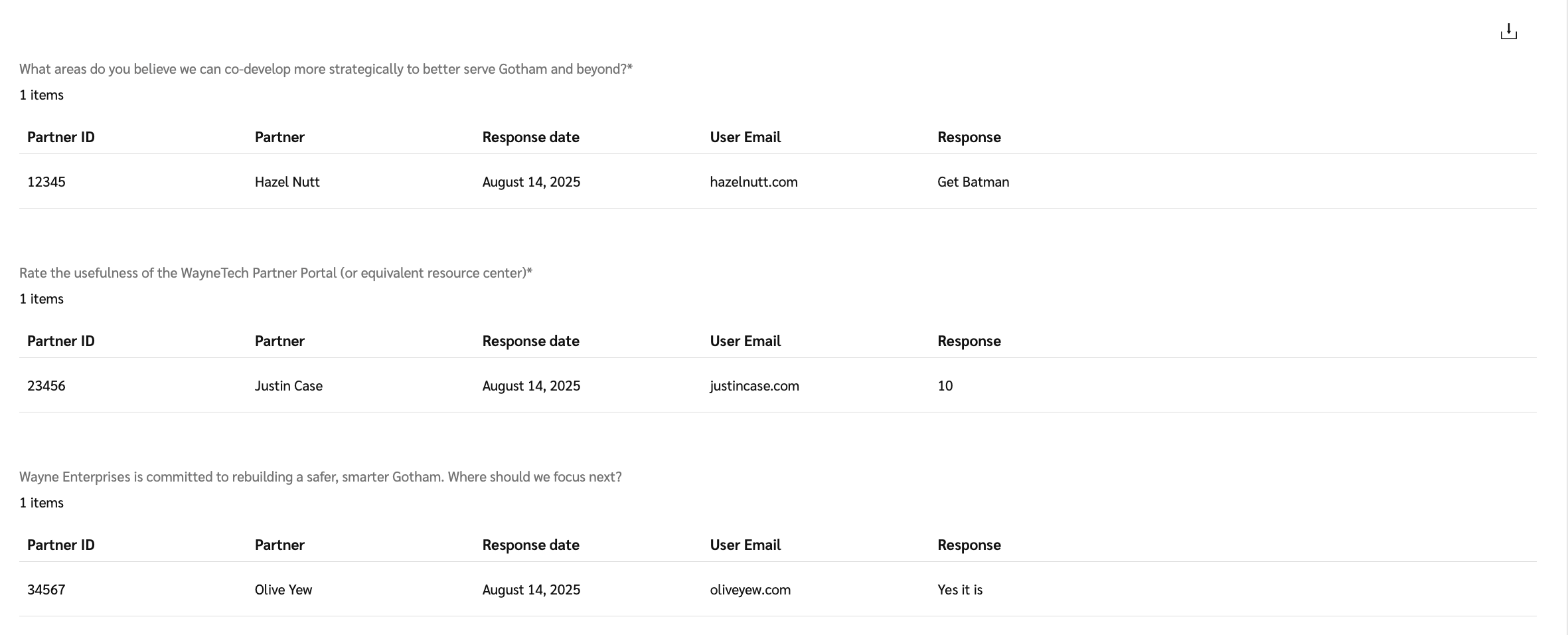
2. 各質問について、回答に加えてその他のパートナー詳細も表示します。
質問詳細の参照
| フィールド | 説明 |
| ------------ | ----------------------- |
| パートナーID | パートナーの一意の識別番号。 |
| パートナー | パートナーの名前。 |
| 回答日 | パートナーが回答した日付。 |
| ユーザーのメールアドレス | パートナーアカウントユーザーのメールアドレス。 |
| 回答 | 質問に対するパートナーの回答。 |
3. アンケートの回答を .csv ファイルとしてダウンロードするには、  **\[ダウンロード]** を右上隅で選択します。
#### アンケートを編集する
{% hint style="success" %}
**注:** アンケートは、まだ回答が記録されていない場合にのみ編集できます。回答を受信すると、収集されたデータの整合性を保つために、アンケートはそれ以上変更できなくなります。
{% endhint %}
1. 次の [*アンケート*](https://app.impact.com/secure/advertiser/engage/fr/surveys.ihtml) *画面*で、回答のない編集したいアンケートにカーソルを合わせ、次を選択します  **\[その他]** → **編集**.
2. 変更したいフィールドを編集します。
* 選択  **\[編集]** アンケートの質問を編集するには  **\[移動]** 、質問の順序を変更するには
3. 必要に応じて、 **アンケートのプレビュー** を選択して、編集内容の表示を確認します。
4. 選択 **保存**.
#### アンケートを削除する
1. 次の [*アンケート*](https://app.impact.com/secure/advertiser/engage/fr/surveys.ihtml) *画面*、削除したいアンケートにカーソルを合わせ、次を選択します  **\[その他]** → **削除**.
* アンケートに回答がない場合は、 **削除**.
2. 警告メッセージを読み、次を選択します **OK**.
{% hint style="warning" %}
**警告**:すべての回答データが削除され、アンケートはパートナーが利用できなくなります。
{% endhint %}
#### アンケートのリンクを取得する
アンケートへのリンクを取得し、参加済みパートナーと共有します。
1. 次の [*アンケート*](https://app.impact.com/secure/advertiser/engage/fr/surveys.ihtml) *画面*、リンクを取得したいアンケートにカーソルを合わせ、次を選択します  **\[その他]** → **リンクをコピー**.
2. モーダルで、次を選択します **リンクをコピー**.
* アンケートが有効な場合にのみ、アンケートのリンクを生成できます。
* アンケートを特定のパートナーに限定している場合、そのリンクからアンケートにアクセスできるのはそのパートナーのみです。
---
# Agent Instructions
This documentation is published with GitBook. GitBook is the documentation platform designed so that both humans and AI agents can read, navigate, and reason over technical content effectively. Learn more at gitbook.com.
## Querying This Documentation
If you need additional information that is not directly available in this page, you can query the documentation by asking a question.
Perform an HTTP GET request on the following URL with the `ask` and `goal` query parameters:
```
GET https://help.impact.com/brand/ja/what-would-you-like-to-learn-about/platform-features/reach-out-to-partners/surveys/manage-your-surveys.md?ask=&goal=
```
`ask` is the immediate question: it should be specific, self-contained, and written in natural language.
`goal` is what the user is ultimately trying to achieve, the reason they need the answer. Sharing it helps GitBook give you a better, more relevant answer. A goal is most helpful when it describes the outcome the user wants rather than restating the question. For example, with `ask=how do I create an API token`, a goal like `automate deployments from our CI pipeline` lets GitBook tailor the answer to that use case.
The response will contain a direct answer to the question and relevant excerpts and sources from the documentation.
Use this mechanism when the answer is not explicitly present in the current page, you need clarification or additional context, or you want to retrieve related documentation sections.