> For the complete documentation index, see [llms.txt](https://help.impact.com/llms.txt). Markdown versions of documentation pages are available by appending `.md` to page URLs; this page is available as [Markdown](https://help.impact.com/brand/ja/what-would-you-like-to-learn-about/platform-features/reach-out-to-partners/email-workflows/reactivate-partners-with-email-workflows.md).
# メールワークフローでパートナーを再有効化する
**アップグレード**: この機能は、特定の impact.com エディションまたはアドオンでのみ利用できます。アカウントに表示されない場合は、 [お問い合わせください](https://app.impact.com/support/portal.ihtml?createTicket=true&) アップグレードのオプションを確認し、アクセス権を取得してください。
自動メールワークフローを使用して、パートナーの再アクティブ化のプロセスを効率化し、拡張しましょう。パートナー再アクティブ化ワークフローテンプレートを選択し、いくつか簡単な変更を加えるだけで、あとは impact.com にお任せください。
1. 左側のナビゲーションメニューで、  **\[Engage] → パートナー → 自動化 → ワークフロー**.
2. 右上隅で、 **ワークフローを作成**を選択し、次に **パートナー再活性化** テンプレートを適用します。
3. テンプレート内の各メールワークフローを確認し、選択します **編集** 始めるには。
4. パートナーセグメントの条件を表示して承認します。問題なければ、選択します **保存**.
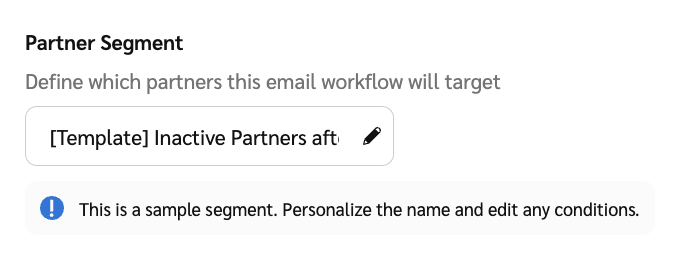
* の *パートナーセグメント*、  **\[編集]** を選択すると、デフォルトのセグメント条件を表示できます。
* そのセグメントの **事前設定された** 条件は、ほとんどのユースケースで機能します。必要に応じて、 [カスタマイズできます](/brand/ja/what-would-you-like-to-learn-about/platform-features/reach-out-to-partners/email-workflows/partner-segments-for-email-workflows-explained.md) さらに調整して、再エンゲージメント試行のトリガーとなる条件を選べます。たとえば、パートナーのクリック数、アクション数、収益、またはコミッションが少ない場合などです。
5. 設定する **送信元** および **返信先** メールのアドレス。
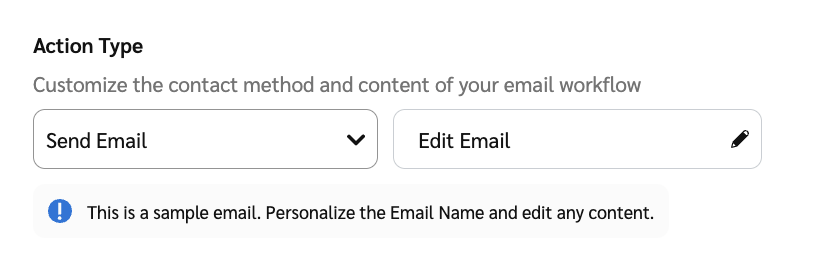
* の下に *アクションタイプ*、 *メールを編集* フィールドの横にある、次を選択します  **\[編集]** してメールアドレスを指定します。次に、 **完了**.
6. 選択してください **保存** を選択してメールワークフローの設定画面に戻ります。すべてのメールワークフローをカスタマイズしたら、 **ワークフローを有効化** して起動しましょう!
以上です!選択したパートナーに連絡し、再エンゲージメントを図ります。
{% hint style="info" %}
**自動化ワークフローでできることにご興味がありますか?** 以下のドキュメントをご覧ください: [メールワークフローの作成と管理](/brand/ja/what-would-you-like-to-learn-about/platform-features/reach-out-to-partners/email-workflows/create-and-manage-email-workflows.md) および [意思決定の自動化](/brand/ja/what-would-you-like-to-learn-about/platform-features/review-partner-applications/automate-partner-application-processing/create-workflows-to-automatically-process-partner-applications.md) パートナー申請について!
{% endhint %}
---
# Agent Instructions
This documentation is published with GitBook. GitBook is the documentation platform designed so that both humans and AI agents can read, navigate, and reason over technical content effectively. Learn more at gitbook.com.
## Querying This Documentation
If you need additional information that is not directly available in this page, you can query the documentation by asking a question.
Perform an HTTP GET request on the following URL with the `ask` and `goal` query parameters:
```
GET https://help.impact.com/brand/ja/what-would-you-like-to-learn-about/platform-features/reach-out-to-partners/email-workflows/reactivate-partners-with-email-workflows.md?ask=&goal=
```
`ask` is the immediate question: it should be specific, self-contained, and written in natural language.
`goal` is what the user is ultimately trying to achieve, the reason they need the answer. Sharing it helps GitBook give you a better, more relevant answer. A goal is most helpful when it describes the outcome the user wants rather than restating the question. For example, with `ask=how do I create an API token`, a goal like `automate deployments from our CI pipeline` lets GitBook tailor the answer to that use case.
The response will contain a direct answer to the question and relevant excerpts and sources from the documentation.
Use this mechanism when the answer is not explicitly present in the current page, you need clarification or additional context, or you want to retrieve related documentation sections.