> For the complete documentation index, see [llms.txt](https://help.impact.com/llms.txt). Markdown versions of documentation pages are available by appending `.md` to page URLs; this page is available as [Markdown](https://help.impact.com/brand/ja/what-would-you-like-to-learn-about/platform-features/protect-and-monitor-your-performance-program/social-monitoring/review-social-monitoring-results.md).
# ソーシャルモニタリング結果を確認
ソーシャル監視を使用すると、ソーシャルメディア上でパートナーがどこであなたのビジネスを宣伝しているか、またそれらの投稿に関連するリスクがあるかどうかを確認できます。その後、パートナーにこれらの投稿を修正してもらうために違反を記録するかどうかを判断できます。
#### ソーシャル監視の結果にアクセスする
1. 左側のナビゲーションバーで、選択します  **\[保護]** → **監視** → **ソーシャル**.
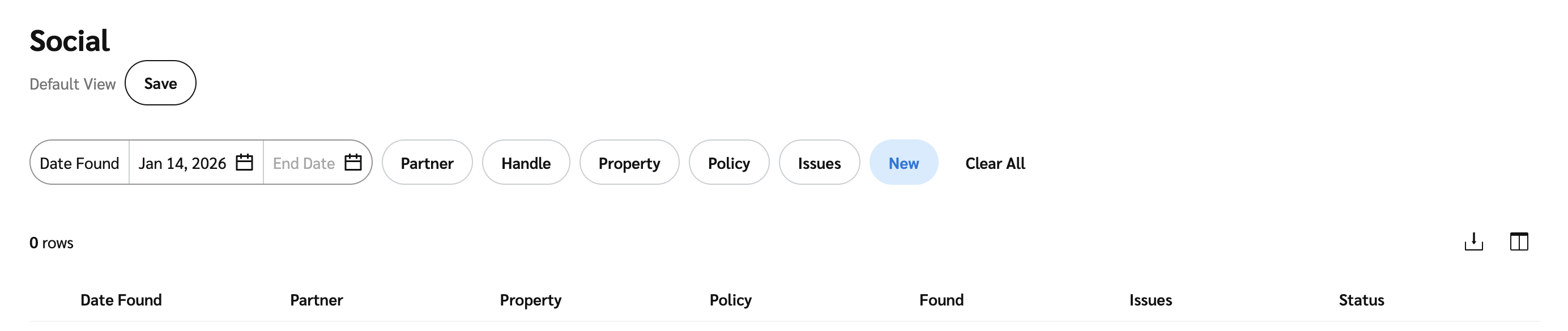
2. フィルターを使用して、特定のソーシャルレビューを見つけます。
フィルター参照
| フィルター | 説明 |
| ------- | ----------------------------------------------------------------------------------------------------------------------------------------------- |
| 検出日/終了日 | 表示したいレビュー対象投稿の日付範囲。 |
| パートナー | パートナー別にソーシャルレビューを絞り込みます。 |
| ハンドル | パートナーのハンドルで絞り込みます。 |
| プロパティ | パートナーのソーシャルアカウントで絞り込みます。 |
| ポリシー | 特定のソーシャルポリシー設定でソーシャルレビューを絞り込みます。
監視目的が異なる複数のポリシーを設定できます。例: FTCコンプライアンスやブランドセーフティ。
|
| 問題 | 特定のハンドルで見つかった問題の種類で絞り込みます。
問題には、未承認の用語、ブランドセーフティ、または開示が必要なのに見つからない場合などがあります。
|
| ステータス | レビューレコードのステータスで絞り込みます。
ステータスは次に設定されています New デフォルトでは次のようになっていますが、次のような他のステータスも アーカイブ または ハンドル無視 も表示できます。
|
テーブルリファレンス
| 列名 | 説明 |
| ----- | ------------------------------------------------------------------------ |
| 検出日 | ソーシャルレビューが検出された日付。 |
| プロパティ | パートナーのソーシャルアカウント。 |
| パートナー | パートナーの名前とソーシャルハンドル。
パートナーの名前を選択すると、詳細情報を表示したり、条件を提案したりできます。
|
| ポリシー | レビューに関連付けられたポリシー。 |
| 検出 | ソーシャルレビューが検出された日の投稿数とメンション数。 |
| 問題 | レビューで見つかった問題の数。 |
| ステータス | ソーシャルレビューのステータスを表示します。 |
#### パートナーの投稿をレビューする
1. 以下の *ソーシャル* メイン画面で、表示したい投稿にカーソルを合わせ、次を選択します **表示**.
2. パートナーの投稿が複数ある場合は、フィルターを使用して特定の投稿を見つけます。
投稿フィルター
| フィルター | 説明 |
| ------- | ----------------------------- |
| 検索バー | 投稿内の特定のテキストを検索します。 |
| 検出日/終了日 | 投稿の日付範囲。 |
| メンション | 選択した特定のメンションを含むすべての投稿を絞り込みます。 |
| リンク切れ | リンク切れのあるすべての投稿を絞り込みます。 |
| スポンサー付き | スポンサー付きかどうかで、すべての投稿を絞り込みます。 |
3. 投稿が見つかったら、投稿の詳細を表示できます:
* 投稿の画像
* 画像を選択すると、実際の投稿を新しいタブで表示できます。
* 投稿のコンテンツのスニペット
* コンテンツのスニペットにカーソルを合わせると、投稿全体を表示できます。
* メンション数またはリンク切れの数
* ポリシーで設定した未承認の用語の数と、その内容
* ポリシーで設定したブランドセーフティカテゴリの数と、その内容
* スポンサー付き
* 投稿がスポンサー付きかどうか、また開示表示があるかどうか。
---
# Agent Instructions
This documentation is published with GitBook. GitBook is the documentation platform designed so that both humans and AI agents can read, navigate, and reason over technical content effectively. Learn more at gitbook.com.
## Querying This Documentation
If you need additional information that is not directly available in this page, you can query the documentation by asking a question.
Perform an HTTP GET request on the following URL with the `ask` and `goal` query parameters:
```
GET https://help.impact.com/brand/ja/what-would-you-like-to-learn-about/platform-features/protect-and-monitor-your-performance-program/social-monitoring/review-social-monitoring-results.md?ask=&goal=
```
`ask` is the immediate question: it should be specific, self-contained, and written in natural language.
`goal` is what the user is ultimately trying to achieve, the reason they need the answer. Sharing it helps GitBook give you a better, more relevant answer. A goal is most helpful when it describes the outcome the user wants rather than restating the question. For example, with `ask=how do I create an API token`, a goal like `automate deployments from our CI pipeline` lets GitBook tailor the answer to that use case.
The response will contain a direct answer to the question and relevant excerpts and sources from the documentation.
Use this mechanism when the answer is not explicitly present in the current page, you need clarification or additional context, or you want to retrieve related documentation sections.