> For the complete documentation index, see [llms.txt](https://help.impact.com/llms.txt). Markdown versions of documentation pages are available by appending `.md` to page URLs; this page is available as [Markdown](https://help.impact.com/brand/ja/what-would-you-like-to-learn-about/platform-features/multi-program-reports/data-lab-custom-reports/edit-a-custom-report.md).
# カスタムレポートを編集する
1. 左側のナビゲーションメニューで、  **\[エンゲージ]** → **レポート → その他のレポート**.
2. 選択してください **カテゴリ** およびフィルター **作成済み**  **[未チェックのボックス]**.
3. 編集したいレポートにカーソルを合わせて、次を選択します **表示**.
4. 編集したいビジュアライゼーションを選択し、次を変更します *ディメンション、メジャー*、必要なフィルター。
5. 右上隅で、次を選択します **保存**.
#### ビジュアライゼーションを管理する
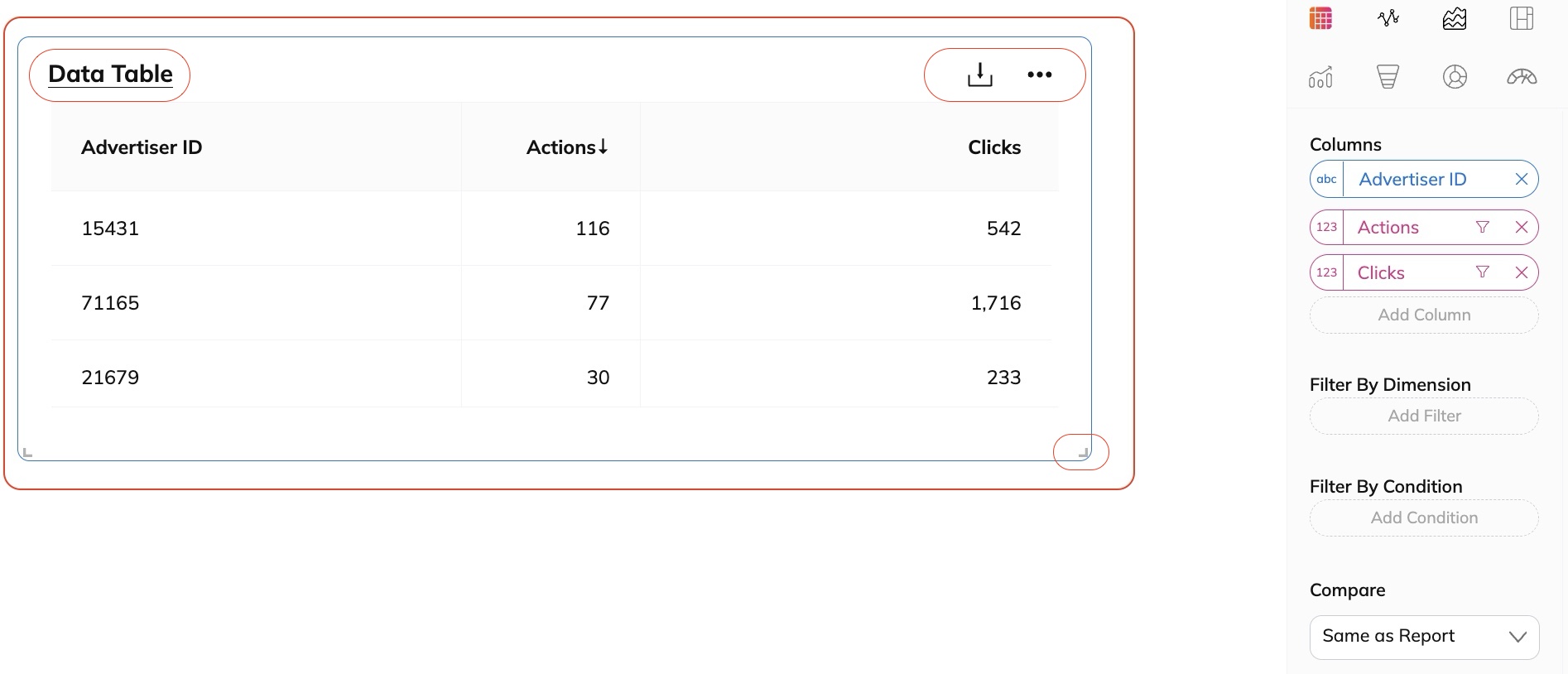
追加した各ビジュアライゼーションの名前の変更、サイズ変更、ダウンロード、複製、削除を行えます。
* **データビジュアライゼーションに名前を付けるには**:
次の *無題* 右上隅のフィールドに名前を入力して、ビジュアライゼーションに名前を付けます。上の例では、データテーブルを追加し、それに応じた名前を付けています。
* **データビジュアライゼーションのサイズを変更するには**:
左下または右下の角にある斜めのブラケットの上にカーソルを置き、目的のサイズまでドラッグします。
* **データビジュアライゼーションをダウンロードするには**:
選択してください  **\[ダウンロード]** そして、データをPDF形式またはCSV形式で保存するかを選択します。
* **データビジュアライゼーションを複製するには**:
選択してください  **\[メニュー] → 複製**。これにより同じビジュアライゼーションのコピーが作成されます。その後、データフィールドを変更・修正して、2つのデータテーブルセットを異なるデータで持つことができます。データセットを分類したり整理したりするのに役立つ優れた方法です。
* **データビジュアライゼーションを削除するには**:
選択してください  **\[メニュー] → 削除**。これは、レポートに表示したくないデータビジュアライゼーションを削除するために使用できます。
---
# Agent Instructions
This documentation is published with GitBook. GitBook is the documentation platform designed so that both humans and AI agents can read, navigate, and reason over technical content effectively. Learn more at gitbook.com.
## Querying This Documentation
If you need additional information that is not directly available in this page, you can query the documentation by asking a question.
Perform an HTTP GET request on the following URL with the `ask` and `goal` query parameters:
```
GET https://help.impact.com/brand/ja/what-would-you-like-to-learn-about/platform-features/multi-program-reports/data-lab-custom-reports/edit-a-custom-report.md?ask=&goal=
```
`ask` is the immediate question: it should be specific, self-contained, and written in natural language.
`goal` is what the user is ultimately trying to achieve, the reason they need the answer. Sharing it helps GitBook give you a better, more relevant answer. A goal is most helpful when it describes the outcome the user wants rather than restating the question. For example, with `ask=how do I create an API token`, a goal like `automate deployments from our CI pipeline` lets GitBook tailor the answer to that use case.
The response will contain a direct answer to the question and relevant excerpts and sources from the documentation.
Use this mechanism when the answer is not explicitly present in the current page, you need clarification or additional context, or you want to retrieve related documentation sections.