> For the complete documentation index, see [llms.txt](https://help.impact.com/llms.txt). Markdown versions of documentation pages are available by appending `.md` to page URLs; this page is available as [Markdown](https://help.impact.com/brand/ja/what-would-you-like-to-learn-about/platform-features/finance/partner-funds-transfer/transfer-funds-to-a-partner.md).

# パートナーに資金を送金

<a href="https://pxa.impact.com/student/activity/1117596?sid=0c0e3e5c-54c9-4435-9bee-ebcdccb7f292&#x26;sid_i=0?utm_source=app.impact.com&#x26;utm_medium=owned-platform&#x26;utm_content=con-350&#x26;utm_campaign=help-center" class="button primary">PXAコースを受講する</a>

契約の支払条件の範囲外でパートナーに送金するために、Partner Funds Transfers（PFT）を使用します。たとえば、 *ボーナス支払い* 未払いのコミッションがあるパートナーに対して行えます。PFT は、 [支払処理ボリューム（PPV）](/brand/ja/what-would-you-like-to-learn-about/platform-features/finance/your-subscription/how-are-volume-usage-rates-calculated.md) の *月* で処理された時点（システムに取り込まれた時点）で課金されます。請求月、予定月、または清算月ではありません。たとえば、1月に PFT をスケジュールし、清算日が3月でも、1月に処理された場合、その金額は1月の PPV に計上されます。

スケジュール済みの PFT は、次の2つのレポートから確認できます： [今後のパートナー支払いレポート](/brand/ja/what-would-you-like-to-learn-about/platform-features/finance/finance-reporting/upcoming-partner-payments-report.md) および [ステータス別・トランザクションタイプ別の使用量](/brand/ja/what-would-you-like-to-learn-about/platform-features/finance/your-subscription/view-your-usage-volume-by-status-and-transaction-type.md).

{% hint style="warning" %}
**警告：** 不明な場合は、進める前に *カスタマーサクセスマネージャー* （CSM）または [サポート](https://app.impact.com/support/portal.ihtml?createTicket=true) に連絡してください。
{% endhint %}

{% embed url="<https://files.gitbook.com/v0/b/gitbook-x-prod.appspot.com/o/spaces%2FwMLlMoFBtKJa8ptd3zaw%2Fuploads%2FedhgLHnZjFTrUfdxSZSG%2Fcon-250-2.mp4?alt=media&token=ebfcde7e-7f86-4b02-bf24-0cd95d303c0d>" %}

#### パートナー資金振替を作成する

1. 上部ナビゲーションバーから、 **残高** → **振替**.
2. 右上隅で、 **送金を作成**.
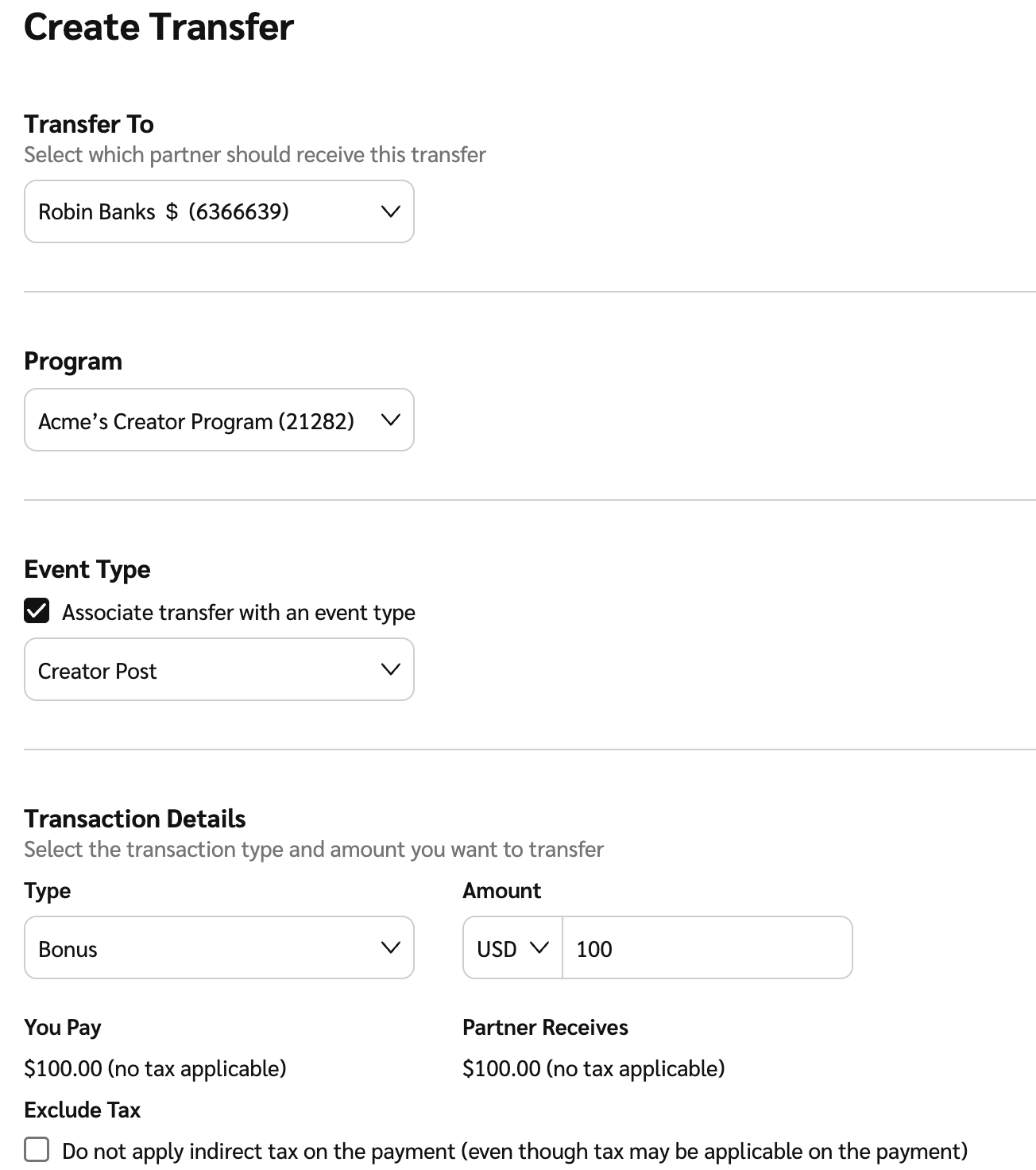
3. 以下の項目を入力して続行します：

   * **振替先：** 次の ![](/files/6f8314de4650eb50296a22f0905ff81ab67391cc) **\[ドロップダウンメニュー]**、資金を受け取るパートナーを選択します。
   * **プログラム：** 次の ![](/files/6f8314de4650eb50296a22f0905ff81ab67391cc) **\[ドロップダウンメニュー]**、この振替の送金元となるプログラムを選択します。
   * **イベントタイプ：** この振替をレポート用の特定のイベントに関連付けるには、 ![](/files/cee708af81ce6ea11e1b8e19926313a76dcf097e) **\[チェック済みボックス]** を選択し、 ![](/files/6f8314de4650eb50296a22f0905ff81ab67391cc) **\[ドロップダウンメニュー]**.

   <div data-with-frame="true"><figure><img src="/files/255268f7117231d7a94ba78def87ddec30868212" alt="" width="563"><figcaption></figcaption></figure></div>
4. を完了します *取引の詳細* セクション。

<details>

<summary>トランザクション詳細リファレンス</summary>

| フィールド名 | 説明                                                                                                                                 |
| ------ | ---------------------------------------------------------------------------------------------------------------------------------- |
| 種類     | 次の ![](/files/6f8314de4650eb50296a22f0905ff81ab67391cc) **\[ドロップダウンメニュー]**&#x304B;らイベントタイプを選択します。選択したパートナーに送信される PFT の種類を選択します。    |
| 金額     | <p>選択したパートナーに送信される金額（および送金通貨）を入力します。</p><p>• 取引に税金または VAT を追加する必要がある場合、または選択したパートナーの口座通貨があなたの口座通貨や取引通貨と異なる場合、それらの金額がここに表示されます。</p> |
| 税抜き    | 選択します ![](/files/fd83586f9930f6bcc6498179e6d7ed9571e7b572) **\[未選択のチェックボックス]** 支払いに間接税を適用したくない場合。                                  |

</details>

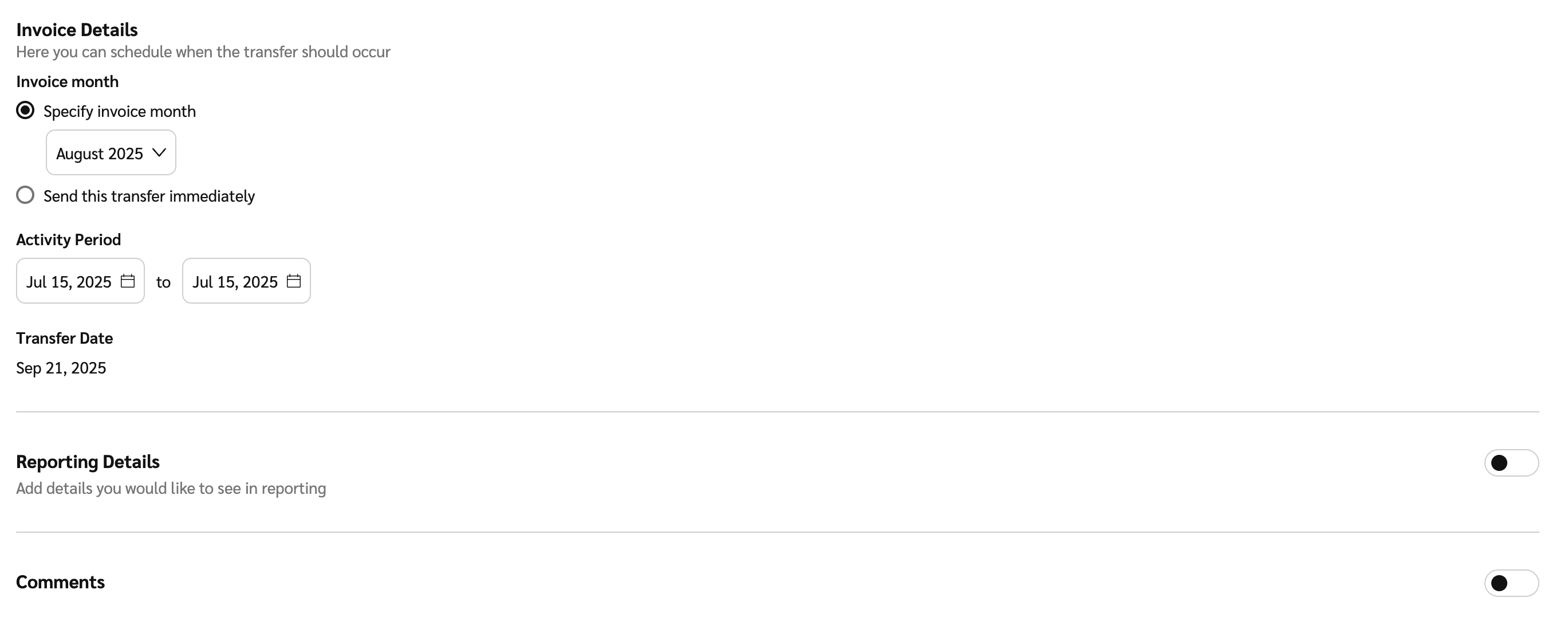
5. で *請求書の詳細* のセクションで、振替を実行するタイミングを設定します。

<details>

<summary>請求書の詳細リファレンス</summary>

| 項目   | 説明                                                                                                                                                                                                                                                                                                                                                                                                                                                                                                                |
| ---- | ----------------------------------------------------------------------------------------------------------------------------------------------------------------------------------------------------------------------------------------------------------------------------------------------------------------------------------------------------------------------------------------------------------------------------------------------------------------------------------------------------------------- |
| 請求月  | <p>選択します <img src="/files/655db55cd06b69109e64fb992dddd9b2c7f03241" alt=""> <strong>\[ラジオボタン]</strong> 請求月を指定したい場合。選択した請求月により、その請求月の終了後に生成される請求書に振替が含まれます。</p><p>たとえば、請求月として5月を選ぶと、振替は6月に生成される請求書に表示されます。</p><p>または、アカウントの <a href="/pages/b3c904477249a5ab1fe5589d5278b731c288def4">資金提供者タイプ</a> で許可されている場合は、 <img src="/files/655db55cd06b69109e64fb992dddd9b2c7f03241" alt=""> <strong>\[ラジオボタン]</strong>を選択して振替を即時に支払うこともできます。その場合、振替は次の請求サイクルに含まれます。</p><p>このオプションを選択したものの、資金供給口座に十分な資金がない場合、振替は処理されません。</p> |
| 活動期間 | <p>PFT を処理する際、開始日と終了日を選択できます。どちらの日付も選択した期間に含まれます。</p><p><strong>注：</strong> 設定できるのは <strong>開始日</strong> パートナーとの契約および選択した請求月で許可される範囲までです。</p><p>デフォルトでは1日だけが選択されます。変更しない限り、終了日は開始日と同じになります。終了日は開始日から最大12か月後まで設定できます。</p><p>コストは、パフォーマンスレポートのために日付範囲全体にわたって均等に配分されます。</p>                                                                                                                                                                                                                                          |
| 送金日  | <p>この振替がどの日に実行されるかを表示します。</p><p>もし <strong>送金日</strong> パートナーとの契約および選択した <strong>請求月</strong>から判断できない場合は、ここに希望の振替日を入力する必要があります。</p>                                                                                                                                                                                                                                                                                                                                                                               |

<div data-with-frame="true"><figure><img src="/files/69447e85960d5d792086704dc9c37ac059498dba" alt=""><figcaption></figcaption></figure></div>

</details>

2. 任意で、 ![](/files/966a7b9c51811043ca7c1811ec6f6b9ef39fd26f) **\[オンに切り替え]** **レポート詳細** アカウントのレポートにこの振替のレポート項目を追加します。項目を追加したら、項目値を入力してください。
3. 任意で、 ![](/files/966a7b9c51811043ca7c1811ec6f6b9ef39fd26f) **\[オンに切り替え]** **コメント** 振替に関するメモを追加します。選択したパートナーは、このメモをレポートで確認できます。
4. 選択します **次へ**.
5. 振替の詳細を確認し、次に **送金**.
   * を選択すると、 **送金**画面にリダイレクトされます。 *振替* を選択できます。 **振替行** を選択すると作成済みの振替を表示できます。または ![](/files/967afd940eacbf83a7772ab9ff5584bc129c9568) **\[メニュー] → PDF をダウンロード** を選択して振替確認書をダウンロードします。

詳細はこちら： [振替の詳細を表示し、](/brand/ja/what-would-you-like-to-learn-about/platform-features/finance/partner-funds-transfer/view-transfer-details.md) それらを絞り込む


---

# Agent Instructions
This documentation is published with GitBook. GitBook is the documentation platform designed so that both humans and AI agents can read, navigate, and reason over technical content effectively. Learn more at gitbook.com.

## Querying This Documentation
If you need additional information that is not directly available in this page, you can query the documentation dynamically by asking a question.

Perform an HTTP GET request on the current page URL with the `ask` query parameter, and the optional `goal` query parameter:

```
GET https://help.impact.com/brand/ja/what-would-you-like-to-learn-about/platform-features/finance/partner-funds-transfer/transfer-funds-to-a-partner.md?ask=<question>&goal=<endgoal>
```

`ask` is the immediate question: it should be specific, self-contained, and written in natural language.
`goal` is optional and describes the broader end goal you are ultimately trying to accomplish on behalf of the user. GitBook uses it to tailor the answer towards what is most useful for that goal.

The response will contain a direct answer to the question and relevant excerpts and sources from the documentation.

Use this mechanism when the answer is not explicitly present in the current page, you need clarification or additional context, or you want to retrieve related documentation sections.