> For the complete documentation index, see [llms.txt](https://help.impact.com/llms.txt). Markdown versions of documentation pages are available by appending `.md` to page URLs; this page is available as [Markdown](https://help.impact.com/brand/ja/what-would-you-like-to-learn-about/advocate-program/manage-advocate-participants/custom-and-calculated-fields/tracking-windows-for-calculated-fields-explained.md).
# 計算フィールドのトラッキングウィンドウの解説
{% hint style="info" %}
**注**: に関する記事をご覧ください [計算済みフィールド](/brand/ja/what-would-you-like-to-learn-about/advocate-program/manage-advocate-participants/custom-and-calculated-fields/calculated-fields-explained.md) それが何であり、いつ役立つのかの説明については、計算フィールドのトラッキングウィンドウの設定方法についてヘルプが必要な場合は、 [計算フィールドの設定](/brand/ja/what-would-you-like-to-learn-about/advocate-program/manage-advocate-participants/custom-and-calculated-fields/set-up-a-calculated-field.md).
{% endhint %}
トラッキングウィンドウを使うと、計算フィールドに時間ベースの要素を追加できます。合計またはカウントの計算を使用する計算フィールドには、トラッキングウィンドウを追加できます。
計算フィールドにトラッキングウィンドウを含めると、参加者が定期的に値(購入金額など)を蓄積し、その値に基づいて報酬を付与できるようにしたい場合に便利です。イベントデータは、選択したウィンドウ内でのみ計算されます。時間が経過してウィンドウが更新されると、以前のデータは考慮されません。
フィールドの値を使って、参加者が次の目標に沿って行動するよう促すプログラムルールを設定できます:
* **最近の行動**: 休眠中の参加者の再アクティブ化や新規購入を促します。
* **頻度**: 最も頻繁に利用する顧客に、プログラムやサービスを継続して利用してもらうよう促します。
* **金額**: 一定の購入金額しきい値に達した高額購入者に報酬を与えます。
計算フィールドを設定する際、トラッキングウィンドウは2種類から選べます:
{% tabs %}
{% tab title="固定トラッキングウィンドウ" %}
固定ウィンドウでは、暦の日、週、月、または年の間に値を追跡できます。ウィンドウは区間の開始時点で始まり、終了時に切り替わります。開始時刻と終了時刻は、impact.comアカウントのタイムゾーン設定によって決まります。
固定ウィンドウ付きの計算フィールドを作成すると、フィールドを作成した瞬間からカウントが始まります。次の完全な区間の開始まで待つことはなく、また、見逃した場合でも、既定では現在の区間の開始時点からの値をさかのぼって計算することもありません。
例
参加者が毎月一定額以上を使った場合に特別な報酬を付与するプログラムルールを設定したいとします。これを行うには、1か月の固定ウィンドウで購入額を合計する計算フィールドが必要です。これを設定すると、購入イベントは毎月1日午前0:00から月末日の午後11:59まで追加されます。
{% endtab %}
{% tab title="スライディングトラッキングウィンドウ" %}
スライディングウィンドウでは、最大90日、週、月、または年までの任意の間隔で値を測定できます。固定ウィンドウとは異なり、スライディングウィンドウは決まった個別の暦区間に依存しません。10日、5週間、3か月、2年など、好きな期間でウィンドウを設定できます。
各区間には個別の **単位** の時間があります。計算フィールドは、各単位が経過し、条件に合う新しいイベントを受信するたびに更新されます。
| 区間の例 | 時間単位 | フィールドは更新されます… |
| ---- | --------------------- | ------------- |
| 10日 | 1日(午前0:00から午後11:59まで) | 毎日経過するたびに |
| 5週間 | 1週間(日曜日から土曜日まで) | 毎週経過するたびに |
| 3か月 | 1か月(毎月1日から月末まで) | 毎月経過するたびに |
| 2年 | 1年(1月1日から12月31日まで) | 毎年経過するたびに |
スライディングウィンドウでは、追跡ウィンドウの各単位ごとに合計またはカウントできる最大値を設定できます。たとえば、90日間のウィンドウでは各日ごとに、12週間のウィンドウでは各週ごとに設定できます。これは区間全体の上限ではなく、各単位ごとの上限のみを設定します。
区間にかかわらず、各単位の開始時刻は午前0:00(深夜)、終了時刻は午後11:59とみなします。これはimpact.comアカウントのタイムゾーン設定に基づいて決定されます。
例
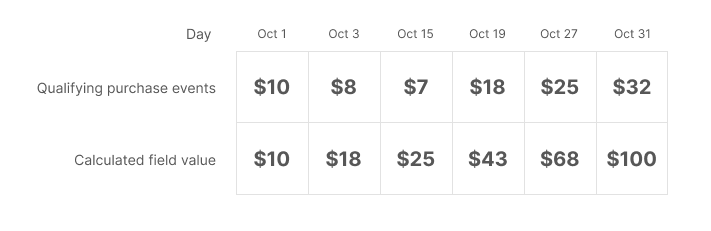
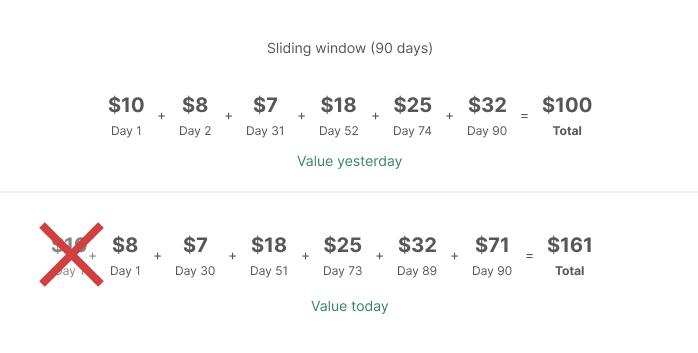
参加者が90日間の支出額に基づいてポイントを蓄積できるようにしたいとします。毎日経過し、条件に合う新しいイベントデータを受信するたびに、計算フィールドの値は更新され、直近90日間の支出額が反映されます。
{% endtab %}
{% endtabs %}
---
# Agent Instructions
This documentation is published with GitBook. GitBook is the documentation platform designed so that both humans and AI agents can read, navigate, and reason over technical content effectively. Learn more at gitbook.com.
## Querying This Documentation
If you need additional information that is not directly available in this page, you can query the documentation by asking a question.
Perform an HTTP GET request on the following URL with the `ask` and `goal` query parameters:
```
GET https://help.impact.com/brand/ja/what-would-you-like-to-learn-about/advocate-program/manage-advocate-participants/custom-and-calculated-fields/tracking-windows-for-calculated-fields-explained.md?ask=&goal=
```
`ask` is the immediate question: it should be specific, self-contained, and written in natural language.
`goal` is what the user is ultimately trying to achieve, the reason they need the answer. Sharing it helps GitBook give you a better, more relevant answer. A goal is most helpful when it describes the outcome the user wants rather than restating the question. For example, with `ask=how do I create an API token`, a goal like `automate deployments from our CI pipeline` lets GitBook tailor the answer to that use case.
The response will contain a direct answer to the question and relevant excerpts and sources from the documentation.
Use this mechanism when the answer is not explicitly present in the current page, you need clarification or additional context, or you want to retrieve related documentation sections.