> For the complete documentation index, see [llms.txt](https://help.impact.com/llms.txt). Markdown versions of documentation pages are available by appending `.md` to page URLs; this page is available as [Markdown](https://help.impact.com/brand/ja/what-would-you-like-to-learn-about/advocate-program/manage-advocate-participants/advocate-participant-profiles-explained.md).
# Advocate参加者プロフィールの解説
Advocateプログラムの各参加者には *プロフィール* ページがあります。プロフィールから、参加者の個人情報、紹介情報、個別の統計を確認できます。また、手動で報酬を付与したり、紹介を計上したりすることもできます。
参加者のプロフィールを開くには:
1. 左側のナビゲーションメニューで、  **\[Engage] → 参加者**.
2. 検索バーを使って、表示したいプロフィールの参加者を探します。名前、メールアドレス、IDで検索できます。
* の使い方を学ぶ [高度な検索およびフィルター機能](/brand/ja/what-would-you-like-to-learn-about/advocate-program/manage-advocate-participants/filter-and-manage-advocate-participants.md#filter-participants-0-1) がこのページで利用できます。
3. その参加者の **名前** を選択して参加者プロフィールを開きます。
#### 参加者の詳細
参加者プロフィールの上部には、参加者の個人情報、紹介情報、統計の概要が表示されます。
**参加者情報**:参加者の名前、メールアドレス、ロケールを表示します。選択すると **編集** 、以下に保存されているデータを含む個人情報を更新できます: [カスタムフィールド](/brand/ja/what-would-you-like-to-learn-about/advocate-program/manage-advocate-participants/custom-and-calculated-fields/custom-fields-for-advocate-explained.md).
**紹介情報**:選択したプログラムのこの参加者の紹介コードと共有リンクを表示します。複数のAdvocateプログラムがある場合は、下のドロップダウンリストを使用して *紹介情報* 表示するプログラムの紹介コードと共有リンク、およびその特定のプログラムでこの参加者を紹介した人を変更できます。プログラムはアルファベット順に並び、稼働中のプログラムが一時停止中のプログラムより前に表示されます。
**参加者統計**:参加者ページの右側に表示される参加者統計パネルでは、選択した参加者がプログラム全体に与える影響をすばやく把握できます。これらの統計は定期的に更新され、アクティビティと成果の両方を要約します:
これらの統計は、特により価値の高いパートナーシップ階層に移すべき参加者や、PerformanceまたはCreatorプログラムに招待すべき参加者を判断する際に、参加者の成果をひと目で評価するのに役立ちます。
参加者統計リファレンス
| 統計 | 説明 |
| ------------- | ----------------------------------- |
| トラフィック | この参加者の共有リンク経由で発生した総訪問数。 |
| 紹介 | 紹介したユーザーの総数。 |
| コンバージョンした紹介 | コンバージョン(通常は購入)を完了した紹介ユーザー数。 |
| 目標 | 達成した紹介目標の数(プログラム設定で定義)。 |
| 報酬 | 参加者が獲得した報酬の数。 |
| ウィジェットの読み込み回数 | このユーザーによって紹介ウィジェットが読み込まれた回数。 |
| 参加者売上 | 参加者本人による合計購入額。 |
| 紹介経由の売上 | 紹介後にコンバージョンしたユーザーからの売上。 |
| 影響を受けた売上 | 紹介されたユーザーからのすべての売上。最初の購入以外の購入も含みます。 |
詳細を表示するには、参加者の詳細の下にあるタブのいずれかを選択してください。
概要
〜の左側の列には *概要* 画面に、参加者の詳細情報がさらに表示されます。これには [現金支払い](/brand/ja/what-would-you-like-to-learn-about/advocate-program/advocate-rewards/pay-with-cash/cash-payouts-for-advocate-explained.md) の詳細や、 [ユーザーセグメント](/brand/ja/what-would-you-like-to-learn-about/advocate-program/manage-advocate-participants/manage-advocate-user-segments.md) に属しているか、誰が紹介したか、最後にログインした日時が含まれます。参加者の詳細は、次を選択して調整できます:  **\[鉛筆]**.
この *報酬* テーブルには、参加者が獲得した報酬の履歴が表示されます。選択すると **報酬を追加** して [手動報酬](/brand/ja/what-would-you-like-to-learn-about/advocate-program/manage-advocate-participants/add-an-individual-participant-reward-or-referral.md) を必要に応じて付与できます。
この *紹介* テーブルには、この参加者が行ったすべての紹介が表示されます。選択すると **紹介者を追加** する必要がある場合は [別の顧客アドボケイトに功績を付与して](/brand/ja/what-would-you-like-to-learn-about/advocate-program/manage-advocate-participants/add-an-individual-participant-reward-or-referral.md) この参加者を紹介したことにできます。参加者の紹介のいずれかが不正の可能性ありとしてフラグ付けされている場合は、 [それらを確認できます](/brand/ja/what-would-you-like-to-learn-about/advocate-program/manage-advocate-participants/referrals-and-events/review-pending-referrals-for-advocate.md) をこのテーブル内で。
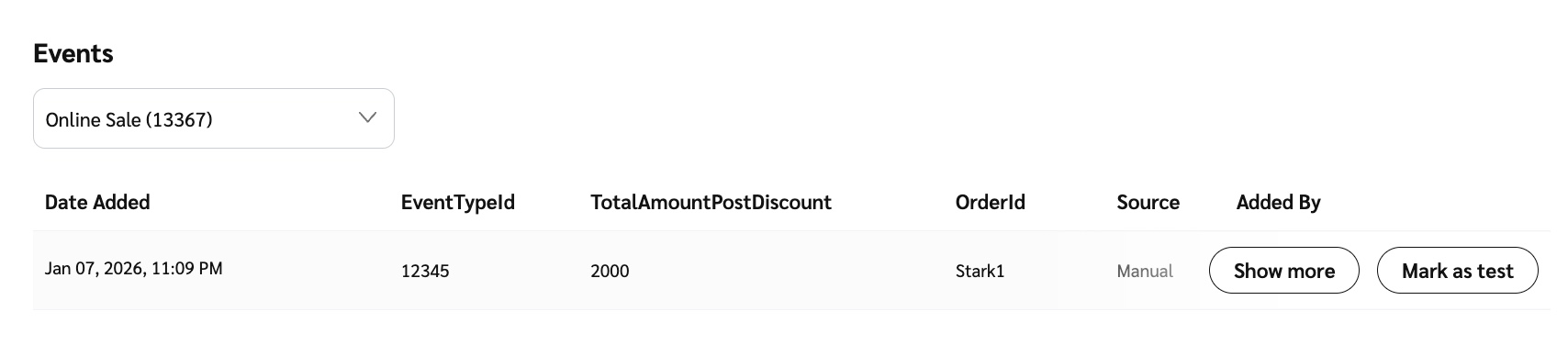
この *イベント* テーブルには、この参加者に対して受信したすべてのイベントが表示されます。イベントの詳細を確認し、トラブルシューティングに役立つ追加情報を収集できます。
コードとリンク
この *コードとリンク* 画面には、この参加者のすべての紹介コードと共有リンクが、プログラム別に表示されます。ここでは、項目にカーソルを合わせて実行したい操作を選択することで、既存のコードやリンクを編集または削除できます。
また、 [バニティ共有リンクまたは紹介コードを追加する](/brand/ja/what-would-you-like-to-learn-about/advocate-program/manage-advocate-participant-experiences/assign-vanity-share-links-or-referral-codes.md) ことができます。
フォーム送信
〜から *フォーム送信* 画面では、参加者が公開中のフォームに送信した内容を確認できます。たとえば、マイクロサイトの登録フォームなどです。テーブルの行にカーソルを合わせ、 **詳細を表示** を選択すると、個々のフォーム送信に関する詳細情報を確認できます。
支払いと税金
もし [W-9コンプライアンス](/brand/ja/what-would-you-like-to-learn-about/advocate-program/advocate-program-settings/w-9-compliance-explained-for-advocate.md) あなたのAdvocateプログラムで有効になっている場合、 *支払いと税金* 画面を使って確認または [変更](/brand/ja/what-would-you-like-to-learn-about/advocate-program/manage-advocate-participants/w-9-tax-compliance/manage-w-9-tax-compliance-for-participants-in-advocate.md) 参加者のW-9収集状況を。
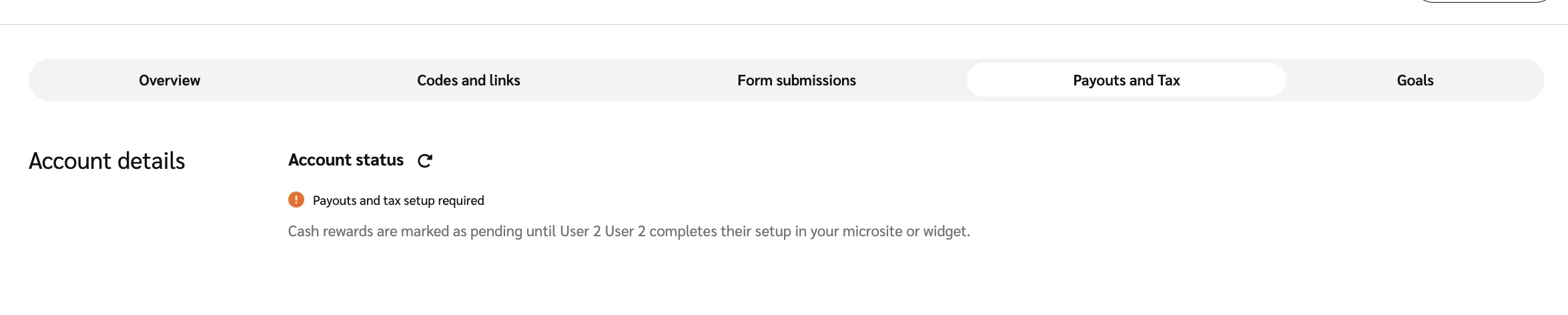
もし使用しているのが [現金支払い](/brand/ja/what-would-you-like-to-learn-about/advocate-program/advocate-rewards/pay-with-cash/cash-payouts-for-advocate-explained.md) である場合、この画面には参加者のアカウントステータスが表示され、未提出の税務書類や支払い保留の有無、選択した支払い方法と頻度が示されます。
{% hint style="info" %}
**注:** 参加者が支払い保留で問題に直面したり、支払いについて質問がある場合は、 [impact.comサポートチーム](mailto:saasquatch-support@impact.com) にサポートを依頼できます。
{% endhint %}
目標
この *目標* 画面には、すべての〜の履歴が表示されます [プログラム目標](/brand/ja/what-would-you-like-to-learn-about/advocate-program/getting-started-with-advocate/advocate-program-rules-explained.md) をこの参加者が達成したもの。
---
# Agent Instructions
This documentation is published with GitBook. GitBook is the documentation platform designed so that both humans and AI agents can read, navigate, and reason over technical content effectively. Learn more at gitbook.com.
## Querying This Documentation
If you need additional information that is not directly available in this page, you can query the documentation by asking a question.
Perform an HTTP GET request on the following URL with the `ask` and `goal` query parameters:
```
GET https://help.impact.com/brand/ja/what-would-you-like-to-learn-about/advocate-program/manage-advocate-participants/advocate-participant-profiles-explained.md?ask=&goal=
```
`ask` is the immediate question: it should be specific, self-contained, and written in natural language.
`goal` is what the user is ultimately trying to achieve, the reason they need the answer. Sharing it helps GitBook give you a better, more relevant answer. A goal is most helpful when it describes the outcome the user wants rather than restating the question. For example, with `ask=how do I create an API token`, a goal like `automate deployments from our CI pipeline` lets GitBook tailor the answer to that use case.
The response will contain a direct answer to the question and relevant excerpts and sources from the documentation.
Use this mechanism when the answer is not explicitly present in the current page, you need clarification or additional context, or you want to retrieve related documentation sections.