> For the complete documentation index, see [llms.txt](https://help.impact.com/llms.txt). Markdown versions of documentation pages are available by appending `.md` to page URLs; this page is available as [Markdown](https://help.impact.com/brand/ja/what-would-you-like-to-learn-about/advocate-program/manage-advocate-participant-experiences/widget-experiences/widget-editor-overview.md).
# ウィジェットエディターの概要
Advocateプログラムでは、ドラッグ&ドロップ式のエディターを使用して、お客様のアドボケイトに表示されるウィジェットの外観と内容をカスタマイズできます。
## ウィジェットエディターのインターフェース
セルフサービスのウィジェットエディターには、4つの主な領域があります。
{% tabs %}
{% tab title="上部メニューバー" %}
ページ上部のメニューバーでは、操作の取り消し、HTMLコードの表示、完成したウィジェットのプレビューができます。デスクトップ、タブレット、モバイルの各アイコンを使って、画面サイズの異なるデバイスでウィジェットがどのように表示されるかを確認できます。
{% endtab %}
{% tab title="キャンバス" %}
キャンバスには、ウィジェットを構成するすべてのコンポーネントが表示されます。個々のコンポーネントを選択して編集したり、新しいコンポーネントを追加して、参加者にどのように表示されるかをひと目で確認したりできます。コンポーネントをキャンバス上の新しい位置にドラッグして、順序を変更できます。
{% endtab %}
{% tab title="左側スライドアウト" %}
左側のスライドアウト設定メニューは、キャンバスの左側にある折りたたみ可能なパネルです。ここで **レイヤー** を選択すると、ウィジェット内のすべてのコンポーネントの詳細ビューを表示できます。あるいは **テンプレート** を選択して、あらかじめ用意されたウィジェットを使用できます。 **設定** ボタンを押すと、パッケージのインストールのサブメニューに移動します。
ブランドレベルでもさらに細かいスタイリングを行うには、ウィジェットスタイルのオプションを選択します。利用可能なスタイリングオプションの詳細については、「コンテンツエディターでウィジェットとマイクロサイトをカスタマイズする」をご覧ください。
{% endtab %}
{% tab title="コンポーネント" %}
コンポーネントメニューは、キャンバスの右側にあるパネルです。 **追加** タブを使って新しいコンポーネントをキャンバスに挿入し、 **編集** タブを使って、既存の内容を調整します。
{% endtab %}
{% endtabs %}
## トラブルシューティング
ウィジェットには、コンポーネントの配置とプロパティのエラーを確認するための2段階の検証があります。エラーメッセージが表示される一般的な理由は次のとおりです。
* 必須フィールドの未入力
* 無効な色の選択
* 無効なURLの入力
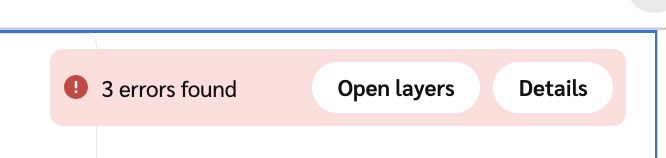
未解決のエラーがある場合、キャンバスの右上に警告メッセージが表示され、検出されたエラーの数が通知されます。
プログラムウィジェットのカスタマイズについて詳しく見る。
## **未解決のエラーの詳細を表示**
1. 選択 **詳細** を警告メッセージで確認すると、何が問題だったかを簡単に説明できます。
2. 次のいずれかの方法で、エラーのあるコンポーネントに移動します。
* 選択する **レイヤーを開く**
* エラーの説明メッセージを選択する
3. エラーのあるコンポーネントを見つけます。赤い感嘆符アイコンでマークされています。
4. コンポーネントを選択して、 **編集** バーでプロパティを開きます。
5. 必要な変更を加えます。
---
# Agent Instructions
This documentation is published with GitBook. GitBook is the documentation platform designed so that both humans and AI agents can read, navigate, and reason over technical content effectively. Learn more at gitbook.com.
## Querying This Documentation
If you need additional information that is not directly available in this page, you can query the documentation by asking a question.
Perform an HTTP GET request on the following URL with the `ask` and `goal` query parameters:
```
GET https://help.impact.com/brand/ja/what-would-you-like-to-learn-about/advocate-program/manage-advocate-participant-experiences/widget-experiences/widget-editor-overview.md?ask=&goal=
```
`ask` is the immediate question: it should be specific, self-contained, and written in natural language.
`goal` is what the user is ultimately trying to achieve, the reason they need the answer. Sharing it helps GitBook give you a better, more relevant answer. A goal is most helpful when it describes the outcome the user wants rather than restating the question. For example, with `ask=how do I create an API token`, a goal like `automate deployments from our CI pipeline` lets GitBook tailor the answer to that use case.
The response will contain a direct answer to the question and relevant excerpts and sources from the documentation.
Use this mechanism when the answer is not explicitly present in the current page, you need clarification or additional context, or you want to retrieve related documentation sections.
.png?alt=media&token=b8ae9b78-8cea-425e-8cd8-e35a0b97535a)