> For the complete documentation index, see [llms.txt](https://help.impact.com/llms.txt). Markdown versions of documentation pages are available by appending `.md` to page URLs; this page is available as [Markdown](https://help.impact.com/brand/ja/what-would-you-like-to-learn-about/advocate-program/advocate-rewards/referral-promo-codes-for-participants/set-up-referral-promo-codes.md).
# 紹介プロモコードを設定する
プログラムのルールに紹介用プロモコードをまとめてアップロードし、ウィジェットまたはマイクロサイトを通じてアドボケイトが利用できるようにします。
1. 左側のナビゲーションメニューで、  **\[Engage] → \[Program Rules]**.
2. スクロールして *プロモコード* セクションに移動し、 **プロモコードを設定**を選択します。紹介用プロモコードの場合は、次のいずれかに設定できます。 **複数回使用** または **1回限りの使用**.
* 不正利用を最小限に抑えられるため、複数回使用コードよりも1回限りの使用コードをおすすめします。
3. アドボケイトごとに利用可能にするコードの数を選択します。このオプションは、 **1回限りの使用** プロモコードを作成する場合にのみ利用できます。
* これは、アドボケイトが一度に保有できる未使用コードの数であり、生涯の上限ではありません。コードの [使用後に置き換えられる仕組み](https://help.impact.com/brand/ja/what-would-you-like-to-learn-about/advocate-program/advocate-rewards/referral-promo-codes-for-participants/replace-used-promo-codes.md).
4. プロモコードの残数が少なくなったときに通知を受け取るタイミングを設定できます。
* コード数が通知セクションで設定した数に達すると、コードの残数が少なくなったことを知らせるメールが届きます。使用済みコードを置き換えられるのは、未使用コードが残っている場合のみなので、プログラムのコード数がゼロにならないようにすることが非常に重要です。残数が少なくなったら、プログラムを円滑に運営できるよう、必ずコードを追加でアップロードしてください。
5. 選択 **コードをアップロード** して、紹介用プロモコードをまとめてアップロードします。
* コードを、対応しているいずれかのファイル形式でまとめてアップロードできるページに移動します。
6. 選択 **保存** プロモコードの設定が完了したら、を選択します。保存してよいか確認するポップアップが表示されます。1回限りのコードを有効にすると、この操作は取り消せません。
7. 選択  **\[チェックボックス]** して、新しいプロモコードテンプレートをウィジェットに自動的に適用します。
* または、既存のウィジェットやマイクロサイトがある場合は、紹介用プロモコードのコンポーネントを手動で追加できます。左側のナビゲーションバーで **コンテンツ** に移動し、ウィジェットまたはマイクロサイトの編集を選択します。右側の **追加** を選択すると、既存のウィジェットまたはマイクロサイトにコンポーネントを追加できます。詳しくは、 [ウィジェットとマイクロサイトのコンポーネント](https://help.impact.com/brand/ja/what-would-you-like-to-learn-about/advocate-program/manage-advocate-participant-experiences/widget-and-microsite-components-explained.md).
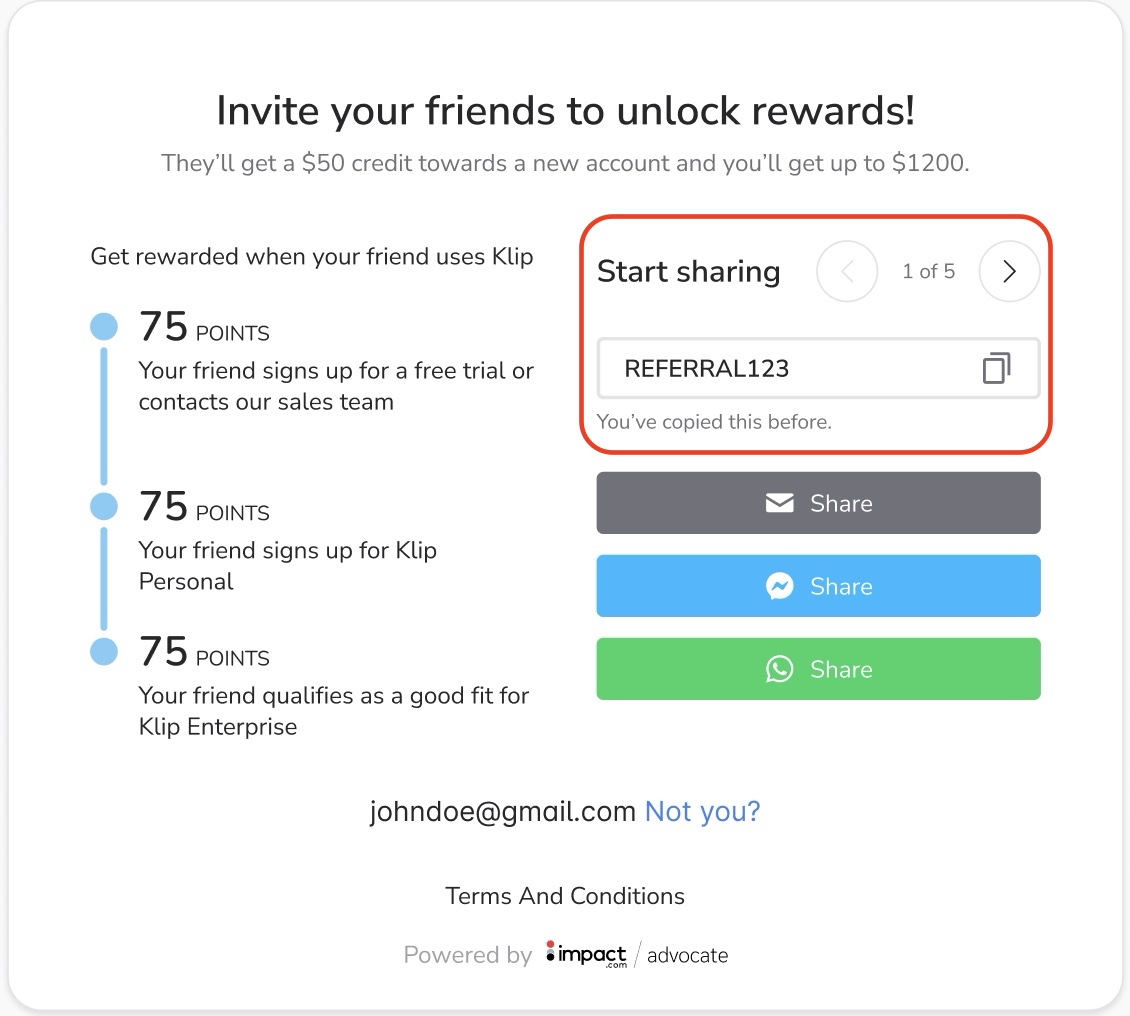
紹介用プロモコードをアップロードすると、コードが自動生成され、設定済みの [ウィジェット](https://help.impact.com/brand/ja/what-would-you-like-to-learn-about/advocate-program/manage-advocate-participant-experiences/introduction-to-participant-experiences.md#widgets-0-0) またはマイクロサイトを通じて提供されます。
以下の画像では、アドボケイトに5種類のコードが提供されており、コードを切り替えてコピーし、紹介先に共有できます。コードが以前にコピーされている場合は、コード入力欄の下に通知が表示されます。これにより、同じコードを複数の人に送ってしまう事態を防げます。
---
# Agent Instructions
This documentation is published with GitBook. GitBook is the documentation platform designed so that both humans and AI agents can read, navigate, and reason over technical content effectively. Learn more at gitbook.com.
## Querying This Documentation
If you need additional information that is not directly available in this page, you can query the documentation by asking a question.
Perform an HTTP GET request on the following URL with the `ask` and `goal` query parameters:
```
GET https://help.impact.com/brand/ja/what-would-you-like-to-learn-about/advocate-program/advocate-rewards/referral-promo-codes-for-participants/set-up-referral-promo-codes.md?ask=&goal=
```
`ask` is the immediate question: it should be specific, self-contained, and written in natural language.
`goal` is what the user is ultimately trying to achieve, the reason they need the answer. Sharing it helps GitBook give you a better, more relevant answer. A goal is most helpful when it describes the outcome the user wants rather than restating the question. For example, with `ask=how do I create an API token`, a goal like `automate deployments from our CI pipeline` lets GitBook tailor the answer to that use case.
The response will contain a direct answer to the question and relevant excerpts and sources from the documentation.
Use this mechanism when the answer is not explicitly present in the current page, you need clarification or additional context, or you want to retrieve related documentation sections.