> For the complete documentation index, see [llms.txt](https://help.impact.com/llms.txt). Markdown versions of documentation pages are available by appending `.md` to page URLs; this page is available as [Markdown](https://help.impact.com/brand/ja/what-would-you-like-to-learn-about/advocate-program/advocate-rewards/create-bulk-cash-rewards-with-advocate.md).

# Advocateで現金報酬を一括作成する

多くの報酬はプログラムのルール（紹介コンバージョンなど）によって自動的に発生しますが、アンケートの完了やコンテストの優勝など、手動またはオフラインのアクションに対して参加者へ報酬を付与する必要がある場合もあります。

その **一括報酬** インポートツールを使用すると、CSVファイルをアップロードすることで、現金、ポイント、またはギフトカードを複数のアドボケートに一度に付与できます。この機能には、資金を支払う前にデータが正しいことを確認するためのドライラン安全機構が含まれています。

### インポートファイルを準備する

{% hint style="success" %}
**注**: グローバルインポート設定を使用する場合、提出する必要があるのは `userId` 一覧です。
{% endhint %}

まず、報酬を付与したいユーザーの一覧が含まれたCSVまたはJSONLファイルが必要です。

* **必須列**: ファイルには少なくとも `userId` を含めてユーザーを識別する必要があります。
* **任意列**: ファイルに報酬の詳細（例: 金額、単位、種類）を含めることができます。あるいは、これらを次のように設定することをおすすめします *グローバルデフォルト* として、インポート処理中にプラットフォーム上で設定しておくと、ファイルを簡潔にできます。

#### ファイル列リファレンス

<table data-header-hidden><thead><tr><th width="297.484375">列</th><th>説明</th><th>要件</th></tr></thead><tbody><tr><td><code>userId</code></td><td>ユーザーの一意のID。</td><td><mark style="color:$danger;">必須</mark></td></tr><tr><td><code>assignedCreditInCurrencyBaseUnit</code></td><td>付与する金額（例: 50）。</td><td>条件付き<br>（グローバルデフォルトが設定されている場合は不要）</td></tr><tr><td><code>rewardUnit</code></td><td>報酬の単位（例: USD、POINTS）。</td><td>条件付き<br>（グローバルデフォルトが設定されている場合は不要）</td></tr><tr><td><code>globalRewardKey</code></td><td>付与する事前設定済み報酬のキー。</td><td><p>条件付き<br>（グローバルデフォルトが設定されている場合は不要）</p><p><br></p></td></tr><tr><td><code>discountPercent</code></td><td>割引として付与する金額</td><td>条件付き<br>（グローバルデフォルトが設定されている場合は不要）</td></tr><tr><td><code>dateScheduledFor</code></td><td>この日付まで報酬を保留します。</td><td>任意</td></tr><tr><td><code>uniqueId</code></td><td>取引の一意識別子。</td><td><mark style="color:$success;">推奨</mark><br>ファイルを再実行した場合の重複報酬を防ぐための安全キーとして使用されます。</td></tr><tr><td><code>customerNote</code></td><td>顧客に表示されるメモを追加します。</td><td>任意</td></tr><tr><td><code>internalNote</code></td><td>顧客には見えない、社内用のメモを追加します。</td><td>任意</td></tr></tbody></table>

{% stepper %}
{% step %}

#### インポート設定を構成

1. 左側のナビゲーションメニューで、次を選択します ![](/files/7ddd72d8e69e7055d9408cf4847c5c54abf9f71d) **\[Engage] → レポート → インポートとエクスポート**.
2. 右上隅で、 **インポート**.
3. 下の *インポート種別*、選択します **リワード**.

<div data-with-frame="true"><figure><img src="/files/c9279dafff092f99da504ba75845a3ffbc57c6fd" alt=""><figcaption></figcaption></figure></div>

**事前設定値（グローバルデフォルト）を設定**

時間を節約し、CSVファイルのエラーを減らすために、インポートの各行に適用される事前設定値を定義できます。

* **報酬**: 事前設定済みの報酬を選択するか、手動の単位（例: "Cash/USD"）を指定します。
* **プログラム**: レポート目的で、これらの報酬を特定のプログラムに関連付けます。
* **報酬保留期間**: ![](/files/966a7b9c51811043ca7c1811ec6f6b9ef39fd26f) **\[オンに切り替え]** 報酬がユーザーに利用可能になる前に、30日などの安全バッファを追加します。これにより、必要に応じて取り消しの時間を確保できます。

{% hint style="success" %}
**注**: ここに値を設定した場合（例: 報酬単位: USD）、あなたは **必要は** その列をCSVファイルに含める必要はありません。
{% endhint %}
{% endstep %}

{% step %}

#### アップロードとドライラン

現金報酬は確定後に取り消せないため、システムではドライラン（テストインポート）が必要です。これにより、報酬を処理する前に詳細を安心して確認できます。

1. 以下の *インポート対象ユーザーのCSVまたはJSONLファイルをアップロードしてください* 選択 **ファイルを選択**.
2. 選択 **テストインポートを実行** テスト状態を開始します。
3. システムがファイルを処理し **なしで** 報酬を作成します。

<div data-with-frame="true"><figure><img src="/files/bae54714dbb7a00e502c98b852be33294fc4c905" alt=""><figcaption></figcaption></figure></div>
{% endstep %}

{% step %}

#### 確認して確定

テスト実行が完了すると、Imports & Exports 一覧にステータス項目が表示されます。確認プロセスの一環としてメールが送信される場合があります（ギフトカード、支払い設定など）。

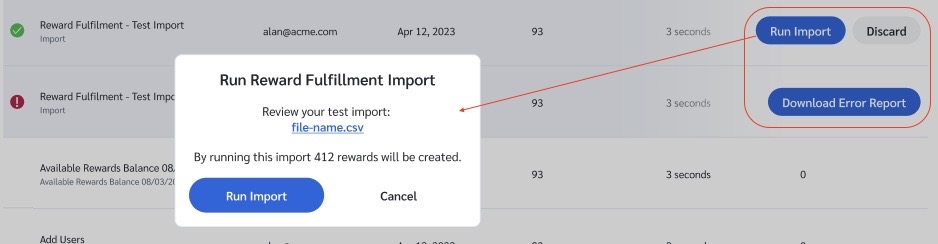
1. **レビュー**: エラーがある場合（以下で示される ![](/files/23e28077dcefa89ff564104723ea19318b4c8b02) **\[感嘆符]**）、次を選択します **エラーレポートをダウンロード** してファイルを修正し、再試行します。また、次を選択します **レポートをダウンロード** 作成されるすべての報酬の記録を取得します。エラーの有無にかかわらず、確認用にダウンロードすることをおすすめします。
2. **確認**: テストが成功した場合（以下で示される ![](/files/c06e91ab7efd9770a84fd6ea87dc52088c52a255) **\[チェックマーク]**）、次を選択します **インポートを実行**.
3. 確認モーダルが表示され、合計の影響（例: 「このインポートを実行すると 412 件の報酬が作成されます」）が要約されます。次を選択してください **インポートを実行** を選択して確認し、報酬を支払います。

続行しない場合は、実行をキャンセルし、その後「破棄」を選択してテスト実行を削除できます。

<div data-with-frame="true"><figure><img src="/files/b9c4ef0bd473c51596144b5ae8e9ce6338fa56c2" alt=""><figcaption></figcaption></figure></div>
{% endstep %}
{% endstepper %}


---

# Agent Instructions
This documentation is published with GitBook. GitBook is the documentation platform designed so that both humans and AI agents can read, navigate, and reason over technical content effectively. Learn more at gitbook.com.

## Querying This Documentation
If you need additional information that is not directly available in this page, you can query the documentation dynamically by asking a question.

Perform an HTTP GET request on the current page URL with the `ask` query parameter, and the optional `goal` query parameter:

```
GET https://help.impact.com/brand/ja/what-would-you-like-to-learn-about/advocate-program/advocate-rewards/create-bulk-cash-rewards-with-advocate.md?ask=<question>&goal=<endgoal>
```

`ask` is the immediate question: it should be specific, self-contained, and written in natural language.
`goal` is optional and describes the broader end goal you are ultimately trying to accomplish on behalf of the user. GitBook uses it to tailor the answer towards what is most useful for that goal.

The response will contain a direct answer to the question and relevant excerpts and sources from the documentation.

Use this mechanism when the answer is not explicitly present in the current page, you need clarification or additional context, or you want to retrieve related documentation sections.