> For the complete documentation index, see [llms.txt](https://help.impact.com/llms.txt). Markdown versions of documentation pages are available by appending `.md` to page URLs; this page is available as [Markdown](https://help.impact.com/brand/ja/what-would-you-like-to-learn-about/advocate-program/advocate-reporting-and-analytics/view-and-manage-your-referrals-feed.md).
# 紹介フィードを表示・管理する
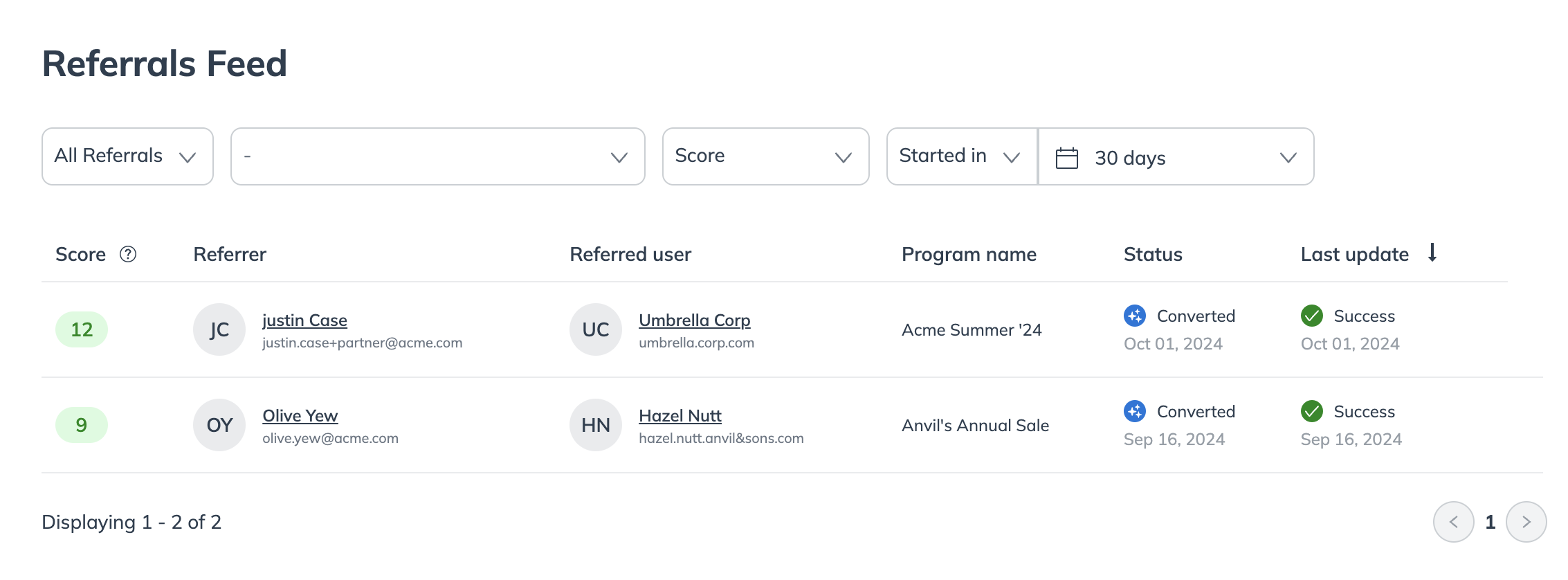
紹介フィードには、開始されたすべての紹介、つまりアドボケートのリンクがクリックされたものと、紹介された友だちがプログラムの目標を達成したときのコンバージョンが表示されます。通常は購入によるものです。
1. 左側のナビゲーションメニューで、  **\[エンゲージ]** → **レポート**.
2. 次に、 **紹介フィード**.
3. 次の  **[ドロップダウンメニュー]** 各フィールドのデータをフィルタリングします。
| 項目 | 説明 |
| ------------ | ------------------------------------------------------------------------------------------------------------------------------------------------------------------------------------------------------------------------------------------------------------------------------------------------------------------------------------------------------------------------------------------------------------------------------------------------------------------------------------------------------------------------------------------------------------ |
| 紹介ステータス | 紹介を取得したいステータスを選択します。
• すべての紹介: すべてのステータスの紹介を表示します。
• 未コンバージョンの紹介: 開始されたがコンバージョンしていない紹介でフィルタリングします。
• コンバージョンした紹介: コンバージョン済みの紹介でフィルタリングします。
• レビュー待ち: 手動審査対象としてフラグが付けられた紹介でフィルタリングします。 審査.
• 拒否: 手動で拒否した紹介、または不正防止設定に基づいて impact.com が自動的に拒否した紹介でフィルタリングします。
|
| プログラム | 紹介を表示したいプログラムを選択します。 |
| スコア | この 不正スコア 0(リスクなし)から100(非常に高いリスク)までの範囲で、新しい紹介と過去の紹介を比較して類似点を見つけることで算出されます。このスコアにより、紹介が自動承認されるか、拒否されるか、手動レビューに回されるかが決まります。
フィルタリングするスコア範囲を選択します。
• 0〜49
• 50〜69
• 70〜84
• 85〜100
• 特定の範囲
|
| アクティビティフィルター | 特定の期間と紹介ステータスで紹介フィードをフィルタリングします。
例: 7日以内に開始。
• 更新から: 紹介が最後に更新されてからの期間です。
• 開始から: 紹介が開始されてからの期間です。
• コンバージョンから: 紹介がコンバージョンしてからの期間です。
• 審査から: 紹介が審査されてからの期間です。
|
#### 紹介列を表示
* スコア - 参加者の紹介スコア。
* 紹介者 - 参加者を紹介したアカウントユーザー。この列に *匿名ユーザー*、紹介は開始されていますが、紹介先ユーザーの名前は取得されていません。通常は、登録完了前に離脱したためです。
* プログラム名 - 参加者が所属するプログラム。
* ステータス - 紹介の現在のステータス。
* 最終更新日 - 紹介が更新された最新日付。
#### 紹介を管理する
管理したい紹介にカーソルを合わせ、次のいずれかを実行します。 **レビュー** または **削除** 紹介。実行したい操作に応じて、以下の手順に進みます。
{% tabs %}
{% tab title="レビュー" %}
〜する際は [紹介を確認しているとき](/brand/ja/what-would-you-like-to-learn-about/advocate-program/manage-advocate-participants/referrals-and-events/review-pending-referrals-for-advocate.md)、表示される詳細は、〜するかどうかを判断するのに役立ちます **承認** または **却下** それを。
{% endtab %}
{% tab title="削除" %}
〜したい場合は **削除** 紹介に対して、以下の手順に従います:
1. 削除したい紹介にカーソルを合わせ、次を選択します **削除**.
2. 正しい紹介を削除していることを確認するため、紹介の詳細を確認します。
3. 選択してください **紹介を削除**.
{% endtab %}
{% endtabs %}
---
# Agent Instructions
This documentation is published with GitBook. GitBook is the documentation platform designed so that both humans and AI agents can read, navigate, and reason over technical content effectively. Learn more at gitbook.com.
## Querying This Documentation
If you need additional information that is not directly available in this page, you can query the documentation by asking a question.
Perform an HTTP GET request on the following URL with the `ask` and `goal` query parameters:
```
GET https://help.impact.com/brand/ja/what-would-you-like-to-learn-about/advocate-program/advocate-reporting-and-analytics/view-and-manage-your-referrals-feed.md?ask=&goal=
```
`ask` is the immediate question: it should be specific, self-contained, and written in natural language.
`goal` is what the user is ultimately trying to achieve, the reason they need the answer. Sharing it helps GitBook give you a better, more relevant answer. A goal is most helpful when it describes the outcome the user wants rather than restating the question. For example, with `ask=how do I create an API token`, a goal like `automate deployments from our CI pipeline` lets GitBook tailor the answer to that use case.
The response will contain a direct answer to the question and relevant excerpts and sources from the documentation.
Use this mechanism when the answer is not explicitly present in the current page, you need clarification or additional context, or you want to retrieve related documentation sections.