> For the complete documentation index, see [llms.txt](https://help.impact.com/llms.txt). Markdown versions of documentation pages are available by appending `.md` to page URLs; this page is available as [Markdown](https://help.impact.com/brand/ja/what-would-you-like-to-learn-about/account-administration/program-settings/tracking-settings/set-third-party-gateway-urls-and-click-tracking.md).

# サードパーティのゲートウェイURLとクリックトラッキングを設定する

<a href="https://pxa.impact.com/student/activity/1117597?sid=0c0e3e5c-54c9-4435-9bee-ebcdccb7f292&#x26;sid_i=0?utm_source=app.impact.com&#x26;utm_medium=owned-platform&#x26;utm_content=tra-350&#x26;utm_campaign=help-center" class="button primary">PXAコースを受講する</a>

{% hint style="warning" %}
**警告:** この記事で説明する詳細設定を変更する前に、 [サポートに連絡](https://app.impact.com/support/portal.ihtml?createTicket=true) または、CSM にお問い合わせください。
{% endhint %}

#### サードパーティのゲートウェイ URL パラメータを表示および変更する

1. 上部のナビゲーションバーから、 ![](/files/173ecabf39fd91e83f3ac16fba44d8e9c845708d) **\[ユーザープロフィール] → \[設定]**.
2. 〜で *プログラム* 列で、 *トラッキング*を見つけて、 **ゲートウェイ**.
3. 次の項目までスクロールし、 *サードパーティのゲートウェイ URL* フィールド。
4. ![](/files/966a7b9c51811043ca7c1811ec6f6b9ef39fd26f) **\[オンに切り替え]** その *すべてのトラフィックをサードパーティのゲートウェイ URL 経由で送信する* セクションで、以下に示す詳細を確認してください。
5. トラフィックをサードパーティの URL 経由でルーティングしたい場合は、その URL と、付加したいクエリ文字列パラメータを設定できます。
   * サードパーティのトラッキングシステムを使用している場合、この機能を使ってそのシステムにクリックデータを記録できます。

<div data-with-frame="true"><figure><img src="/files/873d439d9d3ec6ab463cd7a44fefbab6be77f26c" alt="" width="563"><figcaption></figcaption></figure></div>

<details>

<summary>クエリ文字列パラメータのリファレンス</summary>

| パラメーター            | 説明                                                                                                                |
| ----------------- | ----------------------------------------------------------------------------------------------------------------- |
| `{gwlurl}`        | すべての訪問者がリダイレクトされるゲートウェイのランディングページ URL。これは `{gwlurl}` トークンによって入力され、正確なトラッキングを確保します。                                |
| `{clickid}`       | クリックイベントに割り当てられる一意のクリック ID。                                                                                       |
| `{iradid}`        | 参照元広告 ID。                                                                                                         |
| `{ircid}`         | 参照元プログラム ID。                                                                                                      |
| `{irpid}`         | 参照元パートナー ID。                                                                                                      |
| `{iradname}`      | 参照元広告名。                                                                                                           |
| `{iradtype}`      | 参照元広告タイプ。                                                                                                         |
| `{iradsize}`      | 参照元広告のサイズ（幅 x 高さ）。                                                                                                |
| `{prodsku}`       | 参照元広告内の製品の SKU。                                                                                                   |
| `{irmpname}`      | 参照元パートナー名。                                                                                                        |
| `{irmptype}`      | 参照元メディアタイプ。                                                                                                       |
| `{sharedid}`      | 参照元パートナーによって提供された ID。                                                                                             |
| `{irmpgroupname}` | パートナーグループ名。                                                                                                       |
| `{mp_value1}`     | 参照元パートナーのカスタムパートナー値 1。                                                                                            |
| `{mp_value2}`     | 参照元パートナーのカスタムパートナー値 2。                                                                                            |
| `{mp_value3}`     | 参照元パートナーのカスタムパートナー値 3。                                                                                            |
| `{timestamp}`     | UNIX タイムスタンプ。                                                                                                     |
| `{randint}`       | 0 以上 10,000,000 未満のランダムな整数。                                                                                       |
| `{CUSTOM}`        | これにより、トラッキングリンクで渡された値を取得できます。たとえば、 `http://trackinglink.com?myvar=1`を送信した場合、 `{myvar}` を追加して、トラッキングテンプレートで使用できます。 |

</details>

#### クリックトラッキング設定を表示および変更する

1. 上部のナビゲーションバーから、 ![](/files/173ecabf39fd91e83f3ac16fba44d8e9c845708d) **\[ユーザープロフィール] → \[設定]**.
2. 〜で *プログラム設定* 列で、 *トラッキング*を見つけて、 **ゲートウェイ**.
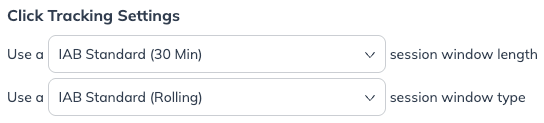
3. の *クリックトラック設定*で、クリックトラッキング期間を変更します。

   * デフォルトは IAB 標準の 30 分のローリングウィンドウで、同じ `ClickId`に関連付けられた新しいクリックごとに、クリックトラッキングセッションがアクティブなまま維持されます。

   <div data-with-frame="true"><figure><img src="/files/26ec3829bc030eef73fb20cda18c5d265fad686a" alt=""><figcaption></figcaption></figure></div>


---

# Agent Instructions
This documentation is published with GitBook. GitBook is the documentation platform designed so that both humans and AI agents can read, navigate, and reason over technical content effectively. Learn more at gitbook.com.

## Querying This Documentation
If you need additional information that is not directly available in this page, you can query the documentation dynamically by asking a question.

Perform an HTTP GET request on the current page URL with the `ask` query parameter, and the optional `goal` query parameter:

```
GET https://help.impact.com/brand/ja/what-would-you-like-to-learn-about/account-administration/program-settings/tracking-settings/set-third-party-gateway-urls-and-click-tracking.md?ask=<question>&goal=<endgoal>
```

`ask` is the immediate question: it should be specific, self-contained, and written in natural language.
`goal` is optional and describes the broader end goal you are ultimately trying to accomplish on behalf of the user. GitBook uses it to tailor the answer towards what is most useful for that goal.

The response will contain a direct answer to the question and relevant excerpts and sources from the documentation.

Use this mechanism when the answer is not explicitly present in the current page, you need clarification or additional context, or you want to retrieve related documentation sections.