> For the complete documentation index, see [llms.txt](https://help.impact.com/llms.txt). Markdown versions of documentation pages are available by appending `.md` to page URLs; this page is available as [Markdown](https://help.impact.com/brand/ja/what-would-you-like-to-learn-about/account-administration/account-settings/partner-test-accounts-for-brands.md).
# ブランド向けパートナーテストアカウント
ブランド側として、パートナーのユーザーインターフェースにアクセスしたい場合があります。これにより、パートナーの体験をよりよく理解でき、パートナーからの質問に答えるのに役立ちます。パートナープラットフォームにアクセスするには、独自のパートナーテストアカウントを作成する必要があります。このテストアカウントではMarketplaceにはアクセスできませんが、パートナーの視点から表示内容を事前確認するのに役立ちます。
## パートナーテストアカウントの使用例
* パートナーのUIとサインアップ体験をよりよく理解するため
* 自身のリンクや広告をテストし、テスト注文を作成するため
* 自分宛てのニュースレターを受信し、パートナーに表示される内容を確認するため
* impact.com からパートナー向けリリースノートを受け取り、パートナー側の変更を常に把握するため。
{% hint style="success" %}
**注:** 以下の手順では、Brands Marketplace に申し込まずにパートナーアカウントを作成する方法を示します。この手順により、テストアカウントがプログラムに直接リンクされます。他のブランドからこのアカウントは閲覧できず、Marketplace にもアクセスできません。
{% endhint %}
{% stepper %}
{% step %}
## **パートナーテストアカウントを作成する**
1. 左側のナビゲーションメニューから、次を選択します  **\[Engage] → 契約 →** [**テンプレート条項**](https://app.impact.com/secure/advertiser/engage/contracts/library/view-manage-ios-flow.ihtml).
2. テストアカウントを登録したい条件にカーソルを合わせ、行の末尾で次を選択します。  **\[その他] →** **ブランドリンクを取得**.
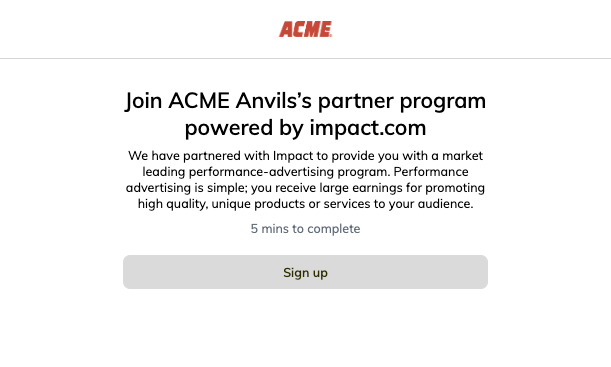
3. サインアップリンクを開きます。
* プログラムのパートナー向けサインアップページに移動します。
4. 選択 **サインアップする**.
5. あなたのプログラム独自の条件が表示され、確認できます。 **承諾する** 条件に同意します。
6. ログインするか、パートナーアカウントを作成するよう求められます。次を選択します。 **メールでサインアップ**.
7. 指示に従って各項目を入力し、既存の impact.com アカウントに関連付けられていないメールアドレスとユーザー名を使用してください。
8. 選択 **始める**.
9. その後のページでは、同じ *個人の*, *会社の*、および *プロモーション情報を* ブランドアカウントと同じ内容で入力します。
* サインアップ手順の詳細については、次を参照してください。 [impact.com でパートナーとしてサインアップする](/partner/ja/nitsuitebitaidesuka/getting-started/sign-up-as-a-partner-on-impactcom.md).
10. 手続きが完了すると、ユーザープロフィールの作成を確認するメールが impact.com から届きます。画面の案内に従ってプロフィールを有効化し、新しいパスワードを作成してください。
{% endstep %}
{% step %}
## **テストアカウントを承認する**
1. ブランドアカウントにログインします。
2. 左側のナビゲーションバーから、次を選択します。  **\[Engage] → パートナー →** [**Applications**](https://app.impact.com/secure/advertiser/engage/contracts/activity/adv-manage-pending-public-ios-v2-flow.ihtml).
3. 自分のプログラム申請を見つけ、行の末尾で次を選択します。  **\[その他] → 承諾**.
{% endstep %}
{% step %}
## **ブランドアカウントとテストアカウントを切り替える**
パートナーテストアカウントを作成すると、次のことができます。 [ブランドアカウントとリンクする](/partner/ja/nitsuitebitaidesuka/account-management/account-settings/how-can-i-merge-my-impactcom-partner-accounts.md) これにより、アカウント間を簡単に切り替えられるようになります。
1. ブランドアカウントにログインします。
2. 左上隅でプログラム名を選択すると、ドロップダウンが展開され、他のアカウントを表示できます。
* ここから、ブランドアカウントとパートナーテストアカウントを切り替えられます。
{% endstep %}
{% endstepper %}
---
# Agent Instructions
This documentation is published with GitBook. GitBook is the documentation platform designed so that both humans and AI agents can read, navigate, and reason over technical content effectively. Learn more at gitbook.com.
## Querying This Documentation
If you need additional information that is not directly available in this page, you can query the documentation by asking a question.
Perform an HTTP GET request on the following URL with the `ask` and `goal` query parameters:
```
GET https://help.impact.com/brand/ja/what-would-you-like-to-learn-about/account-administration/account-settings/partner-test-accounts-for-brands.md?ask=&goal=
```
`ask` is the immediate question: it should be specific, self-contained, and written in natural language.
`goal` is what the user is ultimately trying to achieve, the reason they need the answer. Sharing it helps GitBook give you a better, more relevant answer. A goal is most helpful when it describes the outcome the user wants rather than restating the question. For example, with `ask=how do I create an API token`, a goal like `automate deployments from our CI pipeline` lets GitBook tailor the answer to that use case.
The response will contain a direct answer to the question and relevant excerpts and sources from the documentation.
Use this mechanism when the answer is not explicitly present in the current page, you need clarification or additional context, or you want to retrieve related documentation sections.