> For the complete documentation index, see [llms.txt](https://help.impact.com/llms.txt). Markdown versions of documentation pages are available by appending `.md` to page URLs; this page is available as [Markdown](https://help.impact.com/brand/es/what-would-you-like-to-learn-about/platform-features/reach-out-to-partners/messaging/see-impactcom-messages-from-partners-in-slack.md).
# Ver mensajes de impact.com de socios en Slack
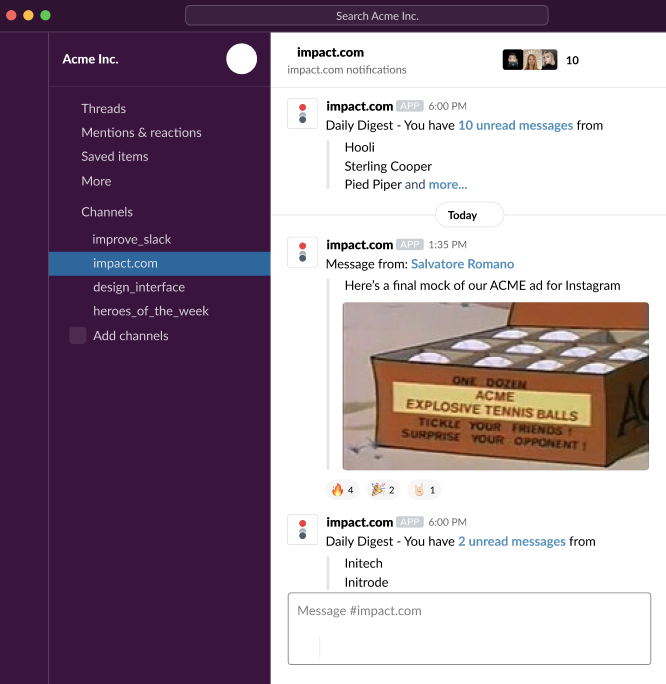
impact.com [Mensajería](/brand/es/what-would-you-like-to-learn-about/platform-features/reach-out-to-partners/messaging/send-a-message-to-a-partner.md) te permite intercambiar mensajes con socios que se han unido a tus programas, y también puedes optar por recibir mensajes y notificaciones de socios en Slack. Sigue leyendo para obtener información sobre cómo configurar un canal en tu espacio de trabajo de Slack usando las [Webhooks entrantes](https://api.slack.com/messaging/webhooks), para que puedas ver los mensajes de impact.com en tu aplicación de Slack.
## Cómo funciona
* Crearás una nueva aplicación en tu espacio de trabajo de Slack y generarás una URL de webhook para el canal en el que quieres que aparezcan las notificaciones.
* En tu cuenta de impact.com, agregarás la URL de webhook de ese canal para habilitar la integración.
* Una vez conectado, Slack te notificará a través del canal cada vez que recibas un mensaje en impact.com.
## Crear una aplicación de impact.com en Slack
{% hint style="warning" %}
**Importante:** Necesitarás acceso de desarrollador a tu espacio de trabajo de Slack para crear aplicaciones.
{% endhint %}
1. Visita el [panel de aplicaciones](https://api.slack.com/apps) e inicia sesión en la plataforma de desarrolladores de Slack.
2. Seleccione **Crear una aplicación**.
3. Asigna a la aplicación un **nombre**, como por ejemplo `Acme Inc`.
4. Seleccione el **espacio de trabajo** en el que alojar la aplicación.
5. Seleccione **Crear aplicación**.
## Habilita los webhooks entrantes y crea una URL de webhook
1. En el [panel de aplicaciones](https://api.slack.com/apps), busca y selecciona la **aplicación de impact.com** que creaste.
2. En el panel de administración de la aplicación, localiza la *Funciones* sección de la izquierda y selecciona **Webhooks entrantes**.
3. Junto a *Activar webhooks entrantes*, seleccione  **\[Activar]** para habilitarlo.
4. Cuando la página se actualice, ve a la *sección URL de webhook para tu espacio de trabajo* y seleccione **Añadir nuevo webhook al espacio de trabajo**.
5. En la indicación, usa el **menú desplegable** para seleccionar en qué canal puede publicar impact.com.
6. Seleccione **Autorizar**.
7. En el *URL de webhook* sección, seleccione **Copiar** para copiar la URL de webhook completa del canal.
## Añade tu URL de webhook de Slack a impact.com
1. Abre tu cuenta de marca de impact.com. En el menú de navegación superior, selecciona  **\[Notificaciones]** → [**Ajustes**](https://app.impact.com/secure/advertiser/notification/view-edit-notification-deliverychannel-settings-advertiser-flow.ihtml).
2. En la *Frecuencia de notificaciones* página, desplázate hasta la *Mensajes* sección.
3. Usa la  **\[Menú desplegable]** para seleccionar **Configuración específica (Avanzada)**.
4. En el *Nuevos mensajes* campo, selecciona **Slack**.
5. En el *Integración de Slack* campo, pega tu **URL de webhook de Slack**.
6. Seleccione **Guardar**.
{% hint style="success" %}
**Nota:** Los mensajes nuevos pueden tardar hasta una hora en llegar a Slack. Además, puedes responder a una notificación en Slack, pero el socio no la recibirá: las notificaciones solo van en una dirección.
{% endhint %}
---
# Agent Instructions
This documentation is published with GitBook. GitBook is the documentation platform designed so that both humans and AI agents can read, navigate, and reason over technical content effectively. Learn more at gitbook.com.
## Querying This Documentation
If you need additional information that is not directly available in this page, you can query the documentation by asking a question.
Perform an HTTP GET request on the following URL with the `ask` and `goal` query parameters:
```
GET https://help.impact.com/brand/es/what-would-you-like-to-learn-about/platform-features/reach-out-to-partners/messaging/see-impactcom-messages-from-partners-in-slack.md?ask=&goal=
```
`ask` is the immediate question: it should be specific, self-contained, and written in natural language.
`goal` is what the user is ultimately trying to achieve, the reason they need the answer. Sharing it helps GitBook give you a better, more relevant answer. A goal is most helpful when it describes the outcome the user wants rather than restating the question. For example, with `ask=how do I create an API token`, a goal like `automate deployments from our CI pipeline` lets GitBook tailor the answer to that use case.
The response will contain a direct answer to the question and relevant excerpts and sources from the documentation.
Use this mechanism when the answer is not explicitly present in the current page, you need clarification or additional context, or you want to retrieve related documentation sections.