> For the complete documentation index, see [llms.txt](https://help.impact.com/llms.txt). Markdown versions of documentation pages are available by appending `.md` to page URLs; this page is available as [Markdown](https://help.impact.com/brand/es/what-would-you-like-to-learn-about/platform-features/reach-out-to-partners/emails/connect-your-personal-email-to-your-impactcom-account.md).
# Conecta tu correo electrónico personal a tu cuenta de impact.com
{% hint style="warning" %}
**Importante:** Esta función solo está disponible para las ediciones Professional y Enterprise.
{% endhint %}
Conecta tu correo electrónico personal a tu cuenta de impact.com para [enviar correos electrónicos a posibles socios](/brand/es/what-would-you-like-to-learn-about/performance-program/recruiting-partners/prospective-partners/contact-a-prospect.md) directamente desde tu dirección de correo electrónico. Esto añade un toque más personal a tus esfuerzos de reclutamiento y contacto.
1. En la barra de navegación superior, selecciona tu  **\[Perfil de usuario]** → **Editar perfil**.
2. Debajo de la *Dirección de correo electrónico remitente* sección, seleccione **Conecta tu correo electrónico**.
3. Selecciona tu proveedor de correo electrónico e introduce tu dirección de correo electrónico.
4. Seleccione **Siguiente**.
5. Autentica la cuenta completando cualquier paso de autenticación multifactor.
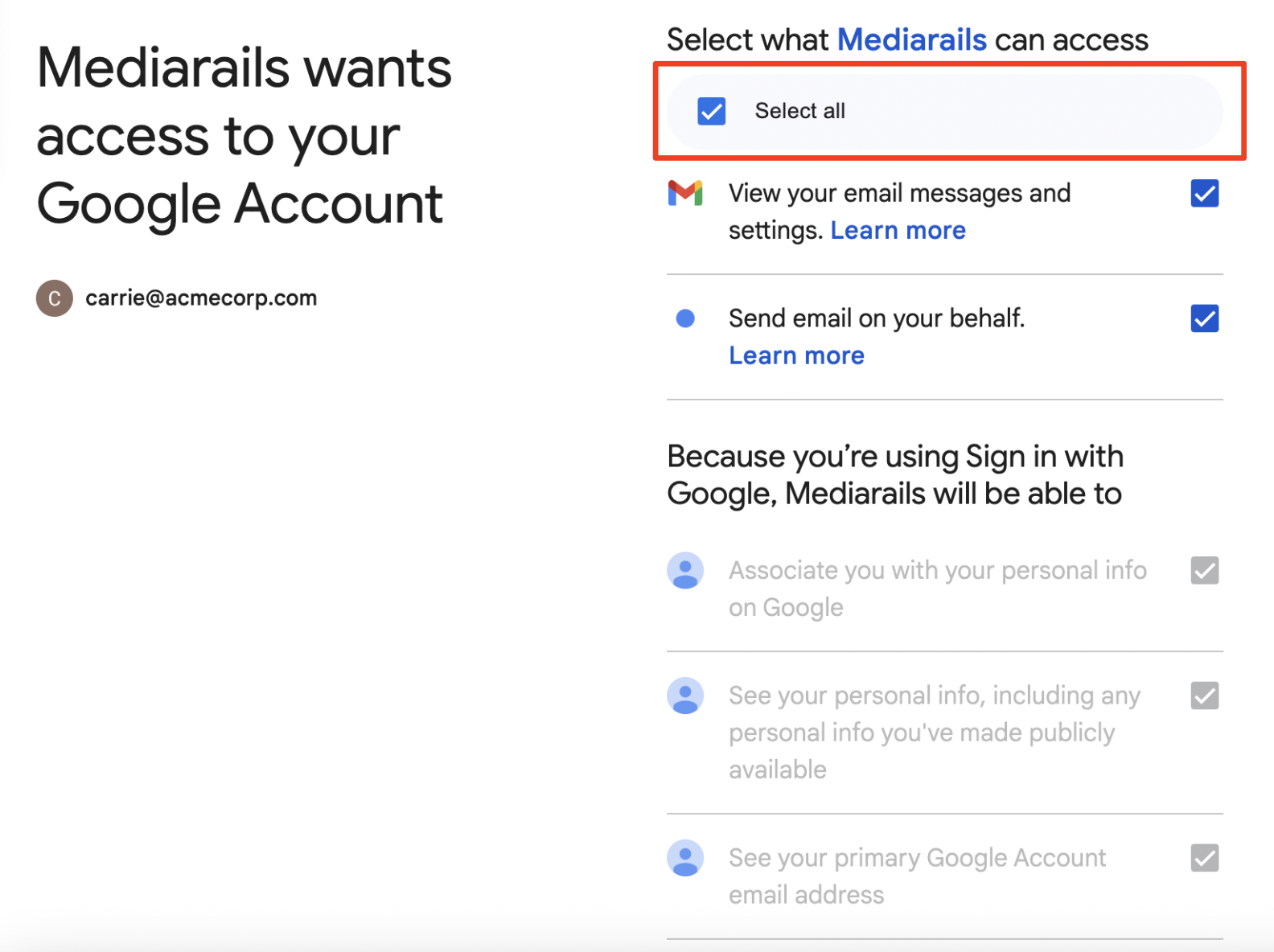
6. impact.com te pedirá que **Inicia sesión en Mediarails**. Mediarails es una empresa de impact.com y fue adquirida por impact.com en septiembre de 2018. Selecciona **Continuar**.
7. Seleccione **Seleccionar todo** para conceder a impact.com los permisos necesarios para enviar correos electrónicos en tu nombre.
8. Seleccione **Continuar**.
* Tu correo electrónico ahora estará conectado a tu cuenta de impact.com. Esto se indica mediante el  **Correo electrónico conectado** mensaje de confirmación que aparece debajo de tu dirección de correo electrónico.
9. Seleccione **Guardar** para finalizar los cambios realizados en tu perfil.
#### Proveedores de correo electrónico compatibles
impact.com admite la integración con los siguientes proveedores de correo electrónico:
* Gmail
* Microsoft Office 365
---
# Agent Instructions
This documentation is published with GitBook. GitBook is the documentation platform designed so that both humans and AI agents can read, navigate, and reason over technical content effectively. Learn more at gitbook.com.
## Querying This Documentation
If you need additional information that is not directly available in this page, you can query the documentation by asking a question.
Perform an HTTP GET request on the following URL with the `ask` and `goal` query parameters:
```
GET https://help.impact.com/brand/es/what-would-you-like-to-learn-about/platform-features/reach-out-to-partners/emails/connect-your-personal-email-to-your-impactcom-account.md?ask=&goal=
```
`ask` is the immediate question: it should be specific, self-contained, and written in natural language.
`goal` is what the user is ultimately trying to achieve, the reason they need the answer. Sharing it helps GitBook give you a better, more relevant answer. A goal is most helpful when it describes the outcome the user wants rather than restating the question. For example, with `ask=how do I create an API token`, a goal like `automate deployments from our CI pipeline` lets GitBook tailor the answer to that use case.
The response will contain a direct answer to the question and relevant excerpts and sources from the documentation.
Use this mechanism when the answer is not explicitly present in the current page, you need clarification or additional context, or you want to retrieve related documentation sections.