> For the complete documentation index, see [llms.txt](https://help.impact.com/llms.txt). Markdown versions of documentation pages are available by appending `.md` to page URLs; this page is available as [Markdown](https://help.impact.com/brand/es/what-would-you-like-to-learn-about/platform-features/contracts-and-template-terms/contracts/send-a-counter-proposal-to-applicants.md).
# Enviar una contraoferta a los solicitantes
Si un socio ha solicitado unirse a tu programa bajo tus condiciones públicas, también puedes proponer un contrato diferente (por ejemplo, un conjunto distinto de condiciones que se adapte mejor al modelo de negocio del socio).
Aprende a [enviar una propuesta a un prospecto](/brand/es/what-would-you-like-to-learn-about/performance-program/recruiting-partners/prospective-partners/send-a-proposal-to-a-prospect.md).
1. En el menú de navegación izquierdo, seleccione  **\[Engage]** → **Socios** → **Solicitudes**.
2. Pasa el cursor sobre el socio al que quieres enviar una propuesta y luego selecciona  **\[Más]** → **Contrapropuesta**.
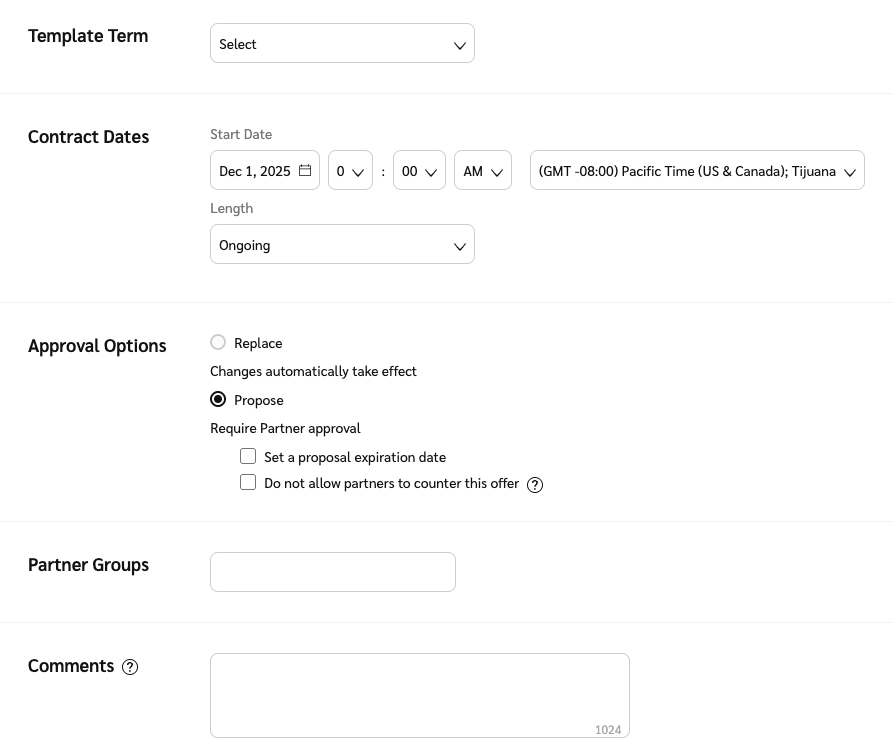
3. En la *Propuesta* pantalla, usa el  **\[Menú desplegable]** para seleccionar un **Término de plantilla**.
4. Establece el **Fechas del contrato** y especificar si el contrato *Duración* debe ser **En curso** o **Temporal**.
* Si seleccionas **Temporal**, especifica la **con fecha de finalización el** fecha y, opcionalmente, hacer que el contrato **Revertir al término de plantilla actual** o **otro término de plantilla** una vez que el contrato termine.
5. Junto a *Opciones de aprobación*, seleccione  **\[Botón de opción]** **Proponer**. Usa el  **\[Casillas sin marcar]** para determinar si esta propuesta tiene un **fecha de caducidad** y si pueden **contraoferta** tu propuesta.
6. Opcionalmente, deja **Comentarios** para explicar tu propuesta.
7. En la parte inferior de la pantalla, selecciona **Guardar**.
* La contraoferta pasará a **Propuestas enviadas** pestaña.
{% hint style="success" %}
**Nota**: El estado de la propuesta cambia a `Contrapropuesta` cuando cualquiera de las partes vuelva a proponer términos. Esto ocurre incluso si los detalles del término no cambian, porque volver a proponer actualiza la fecha de firma, que el sistema interpreta como una nueva contrapropuesta.
{% endhint %}
---
# Agent Instructions
This documentation is published with GitBook. GitBook is the documentation platform designed so that both humans and AI agents can read, navigate, and reason over technical content effectively. Learn more at gitbook.com.
## Querying This Documentation
If you need additional information that is not directly available in this page, you can query the documentation dynamically by asking a question.
Perform an HTTP GET request on the current page URL with the `ask` query parameter, and the optional `goal` query parameter:
```
GET https://help.impact.com/brand/es/what-would-you-like-to-learn-about/platform-features/contracts-and-template-terms/contracts/send-a-counter-proposal-to-applicants.md?ask=&goal=
```
`ask` is the immediate question: it should be specific, self-contained, and written in natural language.
`goal` is optional and describes the broader end goal you are ultimately trying to accomplish on behalf of the user. GitBook uses it to tailor the answer towards what is most useful for that goal.
The response will contain a direct answer to the question and relevant excerpts and sources from the documentation.
Use this mechanism when the answer is not explicitly present in the current page, you need clarification or additional context, or you want to retrieve related documentation sections.