> For the complete documentation index, see [llms.txt](https://help.impact.com/llms.txt). Markdown versions of documentation pages are available by appending `.md` to page URLs; this page is available as [Markdown](https://help.impact.com/brand/de/what-would-you-like-to-learn-about/account-administration/account-settings/subscription-add-ons/get-the-optimize-add-on.md).
# Das Optimize-Add-on erhalten
Wissen Sie nicht, wie die Customer Journeys Ihrer Kunden wirklich aussehen? Sind Sie sich nicht sicher, ob Sie die richtigen Partner gutschreiben? Benötigen Sie tiefere Einblicke in Ihren Sales Funnel, Ihre Marketingkanäle und die Benchmarks Ihrer Marken-Segmente? Holen Sie sich das Optimize-Add-on!
#### Finanzeinstellungen prüfen
1. Wählen Sie in der oberen Navigationsleiste **Ihr Guthaben** **→** [**Abonnement**](https://app.impact.com/secure/advertiser/finance/fr/finance-overview.ihtml).
2. Prüfen Sie, ob Sie das [*Abonnement* Widget](/brand/de/what-would-you-like-to-learn-about/platform-features/finance/your-subscription/view-your-impactcom-subscription-and-usage-details.md) auf dem *Übersicht* Bildschirm angezeigt.
* Wenn das *Abonnement* Widget nicht angezeigt wird, [wende dich an den Support](https://app.impact.com/secure/advertiser/support/customer-support-portal-flow.ihtml) um die Funktion für Ihr Konto aktiviert zu haben.
* Wenn das *Abonnement* das Widget angezeigt wird, können Sie mit den folgenden Anweisungen fortfahren.
#### Für Optimize abonnieren
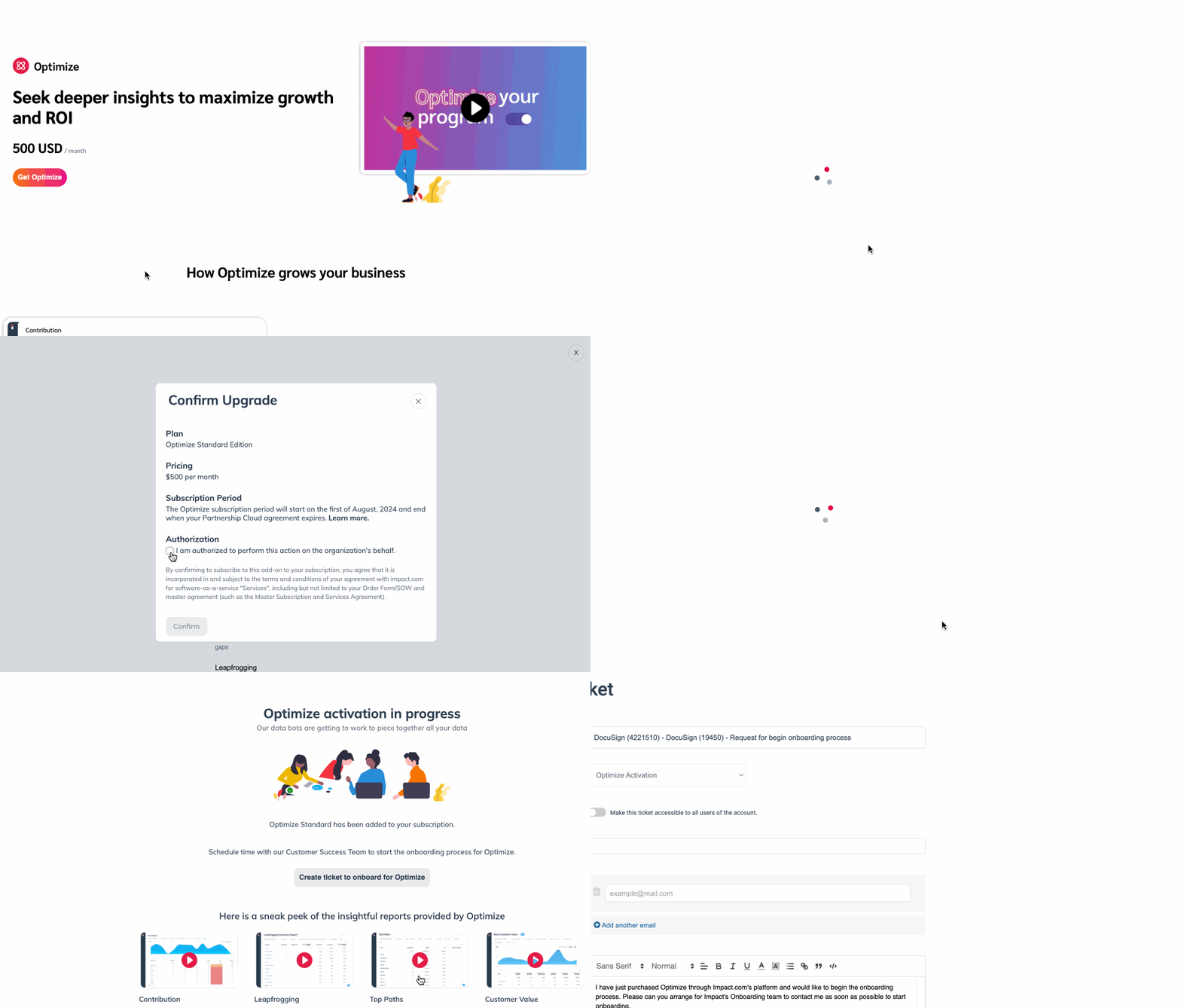
1. Wählen Sie in der linken Navigationsleiste  **Optimize** → **Optimize erhalten**.
2. Wählen Sie Ihren bevorzugten Tarif, z. B. *Standard*, und wählen Sie dann **Tarif auswählen**.
* Lesen Sie im eingeblendeten Pop-up die *Preise*, *Abonnementzeitraum*, und *Autorisierung* Vereinbarung Ihres gewählten Tarifs.
3. Unter *Autorisierung*, wählen Sie  **\[Aktiviertes Kontrollkästchen] Ich bin berechtigt, diese Aktion im Namen der Organisation durchzuführen.**
4. Wählen Sie **Bestätigen**.
5. Sobald Sie Ihr Abonnement bestätigt haben, wählen Sie **Ticket erstellen, um für Optimize onboarded zu werden**.
* Das Onboarding-Team von impact.com wird Sie kontaktieren und Sie bei der Einrichtung Ihrer Kanäle mit Optimize unterstützen.
6. Optional können Sie sich die unten auf dem Bildschirm bereitgestellten Videos ansehen oder unsere [Optimize-Startleitfaden](/brand/de/what-would-you-like-to-learn-about/platform-features/cross-channel-performance-insights/optimize-startup-guide.md) für weitere Informationen.
---
# Agent Instructions
This documentation is published with GitBook. GitBook is the documentation platform designed so that both humans and AI agents can read, navigate, and reason over technical content effectively. Learn more at gitbook.com.
## Querying This Documentation
If you need additional information that is not directly available in this page, you can query the documentation by asking a question.
Perform an HTTP GET request on the following URL with the `ask` and `goal` query parameters:
```
GET https://help.impact.com/brand/de/what-would-you-like-to-learn-about/account-administration/account-settings/subscription-add-ons/get-the-optimize-add-on.md?ask=&goal=
```
`ask` is the immediate question: it should be specific, self-contained, and written in natural language.
`goal` is what the user is ultimately trying to achieve, the reason they need the answer. Sharing it helps GitBook give you a better, more relevant answer. A goal is most helpful when it describes the outcome the user wants rather than restating the question. For example, with `ask=how do I create an API token`, a goal like `automate deployments from our CI pipeline` lets GitBook tailor the answer to that use case.
The response will contain a direct answer to the question and relevant excerpts and sources from the documentation.
Use this mechanism when the answer is not explicitly present in the current page, you need clarification or additional context, or you want to retrieve related documentation sections.